View your Shopify import history
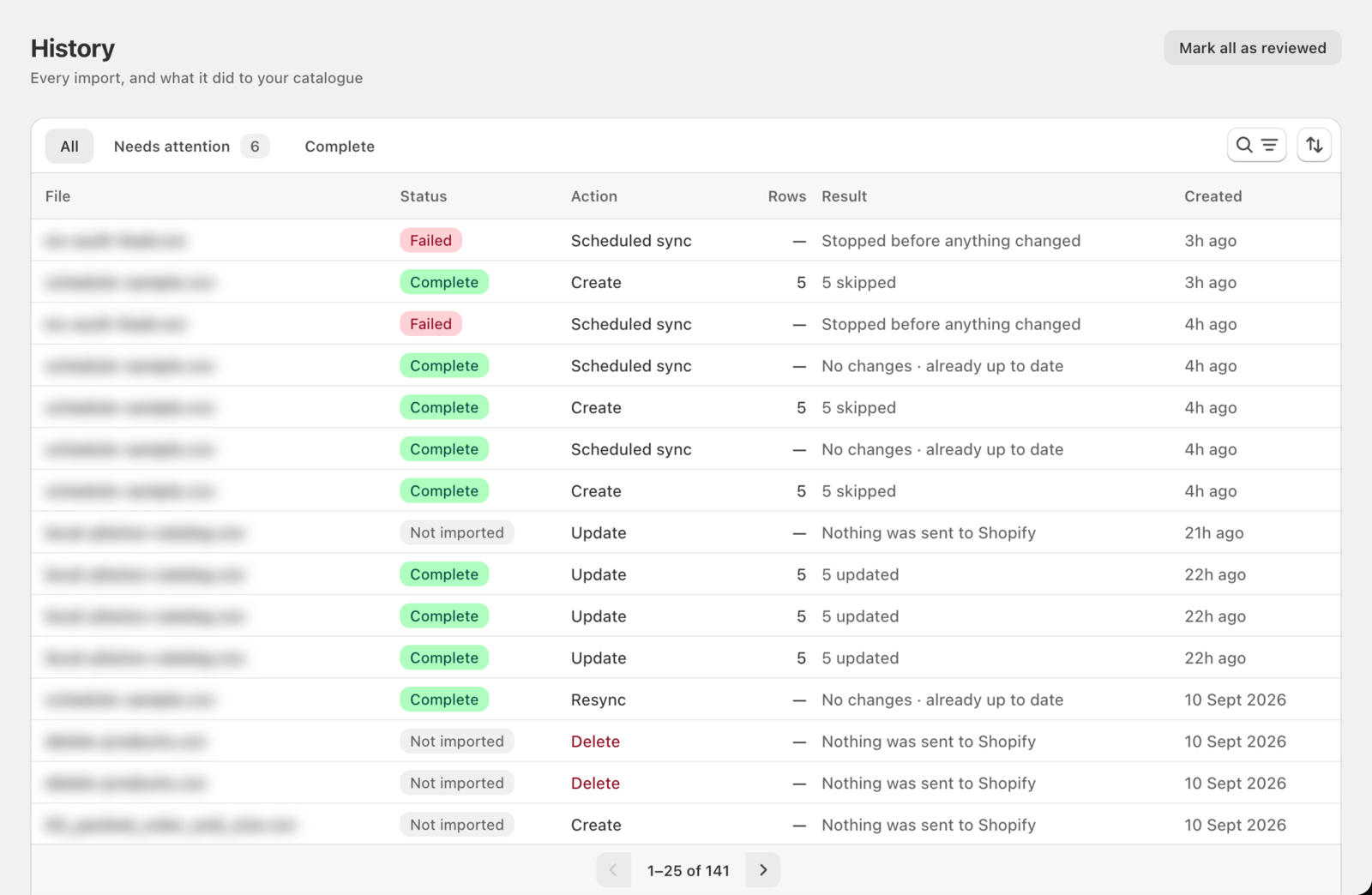
The History page shows every import, resync, and scheduled sync you've run, newest first. Use it to check what each run did to your catalog, retry failed rows, or pick up where you left off.
How do I find a past import?
Use the tabs at the top of the list to narrow it down:
- All — every run
- Needs attention — runs where some or all rows failed, and drafts you can still pick up
- Complete — runs that finished without any failures
The number next to Needs attention counts the ones you haven't dealt with yet. Once you've checked a run, open it and click Mark as reviewed to take it out of the tab. To clear them all at once, click Mark all as reviewed at the top of the page. Reviewed runs keep their status and stay in the All tab, so you can still find them later.
Drafts don't have their own Mark as reviewed button — click Resume to finish them instead. They leave the count on their own once they expire.
Search and filters: Click the search icon to find runs by filename, status, action, or schedule name. From there you can also filter by:
- Date — Today, Last 7 days, Last 30 days, or All time
- Action — Create, Update, Delete, Price update, Inventory sync, Resync, or Scheduled sync (pick more than one to combine them)
Click Clear all to remove every filter at once.
Sorting: Click the sort icon to order the list by date (newest or oldest first), by most failures, or by size (largest first).
How do I check an import that's still running?
A run that's still going shows in its own box above the list, with a progress bar, how many rows have been sent to Shopify, and a rough time remaining. For an import, click Open to follow it on the import screen. It moves into the list once it finishes.
What does each row show?
| Column | What it shows |
|---|---|
| File | The file you uploaded, or the file your schedule fetched |
| Status | Where the run ended up — see Status meanings below |
| Action | What the run did — Create, Update, Delete, Price update, Inventory sync, Resync, or Scheduled sync. Scheduled syncs also show the schedule's name. |
| Rows | How many rows were in the file |
| Result | One line on what happened, like "120 added · 3 skipped · 2 failed" |
| Created | When the run started. Recent runs show relative time like "2h ago" — hover over it to see the exact date and time. |
What does each status mean?
| Status | What it means |
|---|---|
| Queued | Waiting to start — usually a scheduled sync that's about to run |
| Running | Currently sending changes to Shopify |
| Draft | You uploaded a file but haven't clicked Import yet. You can resume it for 2 hours after you started. |
| Complete | Every row that was processed succeeded (skipped rows don't count against this) |
| Partly imported / Partly updated / Partly deleted / Partly synced | Some rows went through and some failed |
| Failed | The run stopped, or none of its rows went through |
| Cancelled | The run was stopped before it finished. The result shows what got through first. |
| Not imported | A draft that was never finished, so nothing was sent to Shopify |
A few results are worth knowing:
- No changes · already up to date — a resync or scheduled sync found that your file matched your store, so there was nothing to change. This is a good result, not an error.
- Stopped before anything changed — the run failed before it touched any products. Open it to see why.
- Nothing was sent to Shopify — the run was never finished. Upload the file again to import it.
- Preview CSV only · not imported — you downloaded a preview CSV from this file but didn't import it.
How do I see what an import changed?
Click any row to open its details. You'll see:
- Row counts — total rows, succeeded, failed, and skipped
- Why it stopped — if the run failed, a plain-language reason at the top
- Why rows failed — failed rows grouped by reason, with the biggest group first, so you know what to fix
- Why rows were skipped — rows that had nothing to do (see Why rows are skipped)
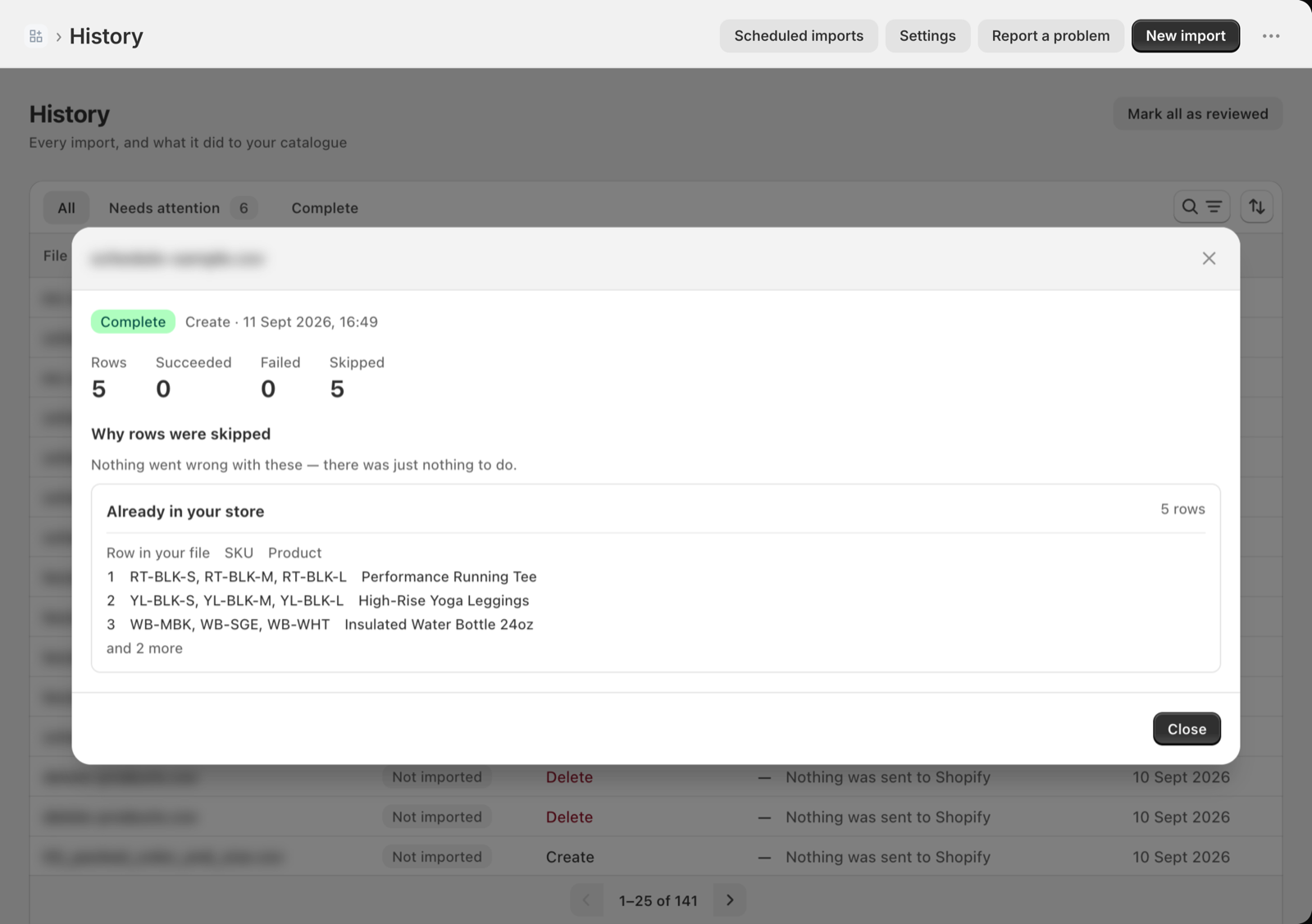
From the details you can:
| Button | What it does |
|---|---|
| Retry | Re-attempts the rows that can work on a second try (shown with the count, like "Retry 12") |
| Download failed rows (CSV) | Downloads every failed row with its row number and the reason, so you can fix them in your file |
| View products in Shopify | Opens your Shopify products list, filtered to products added or changed since the run started. For an inventory sync, this is View inventory in Shopify instead. Not shown for deletes. |
| Mark as reviewed | Takes the run out of the Needs attention tab |
| Resume import | For a draft — picks up at the mapping step |
How do I resume an unfinished import?
If you uploaded a file but didn't finish, the row shows a Resume button and how long you have left (for example, "expires in 1h 20m"). Click Resume to go back to the mapping step without uploading again. Drafts expire 2 hours after you start them — after that, upload the file again.
Where do scheduled syncs appear?
Runs started by a schedule show as Scheduled sync with the schedule's name next to it. If a scheduled sync fails, a banner at the top of the History page tells you which schedule and why, with a View schedules link to fix it.
How do I retry failed rows?
If a run finished with some failures that can work on a second try, open it and click Retry. Csvio re-attempts only those rows — successful rows are not re-imported.
Retry is available for imports. To run a resync or scheduled sync again, start it from the Suppliers or Schedules page.
For more detail on retrying, see Retry failed rows.
Was this article helpful?
Still need help? Open Support in the Csvio menu to send us a message, or email [email protected].