Confirm custom field values during import
A few Shopify fields don't hold typed-in text — they hold a pick from a list your store keeps. Material is the common one: your store has a list of materials, and a product points at one of them rather than storing the word itself.
Your supplier's file only has words. Csvio shows you which word became which entry on your list, so you can correct anything that landed wrong before you import.
Where do I find this?
Right where the column is. On the Review mapping screen, find the column in the Column mapping table. When it's mapped to one of these fields, the source column gains a second line telling you how its values did:
| The line reads | What it means |
|---|---|
| All 5 values matched | Every value found an entry on your list — nothing to do |
| 2 of 5 values matched · 3 to pick | Three values still need you to say what they mean |
| Not allowed on these products | Shopify won't accept this field on these products — see below |
Click the line to open the column and see the values underneath it. Csvio opens it for you when something needs an answer, and leaves it closed when everything matched — so a file with nothing to fix reads exactly like a file with no custom fields at all.
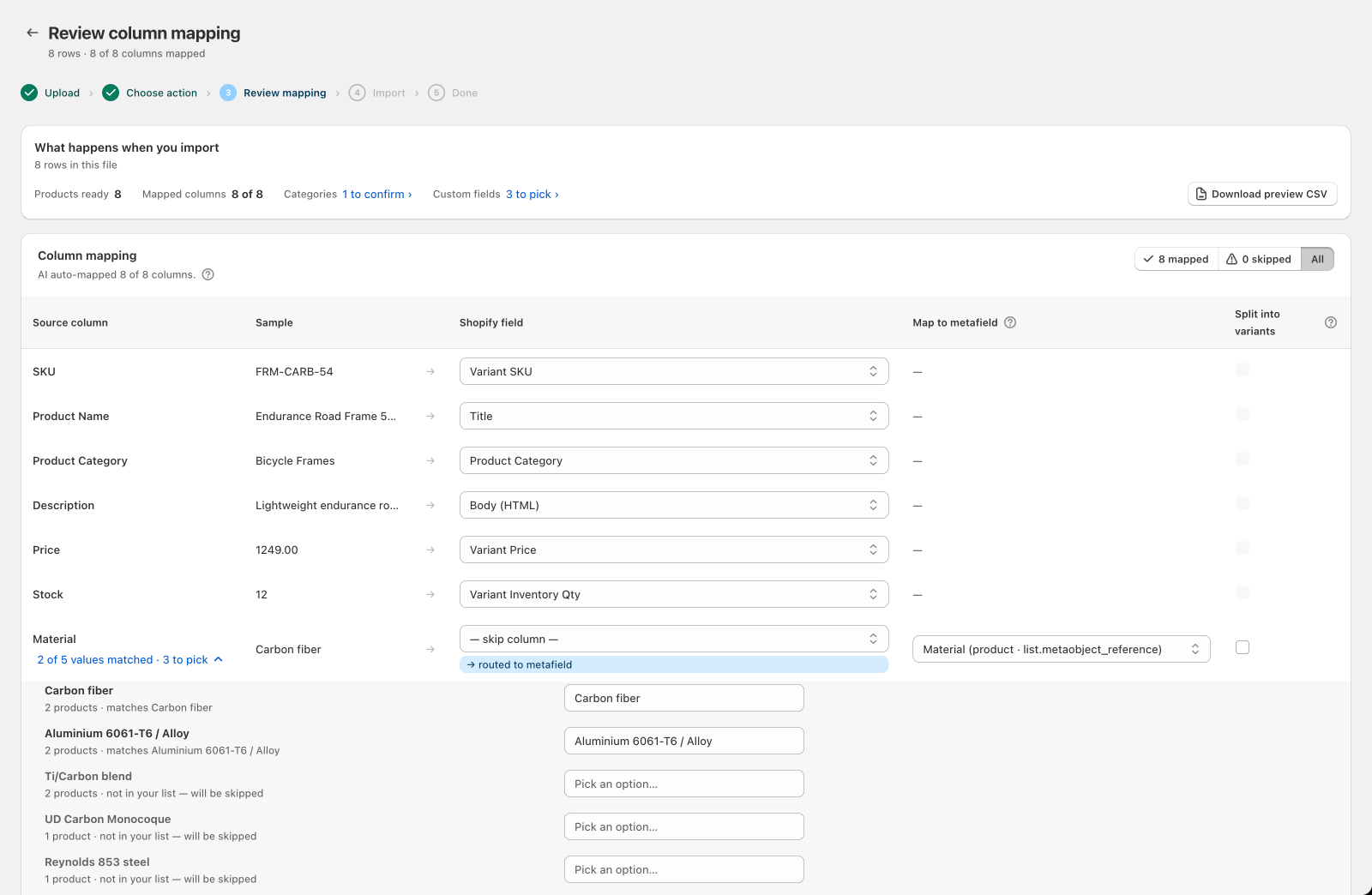
At the top of the screen, the "What happens when you import" summary also gains a Custom fields line, so you can tell at a glance whether there's anything to do:
| Line reads | What it means |
|---|---|
| All set | Every value matched — nothing to do |
| 3 to pick | Three values still need you to say what they mean |
| 1 field not allowed | Shopify won't accept a field on these products |
Clicking it takes you straight to the table.
What do the values mean?
Opening a column lists the values from your file — the ones covering the most products first. Each value tells you what will happen to it if you change nothing:
| What the value says | What it means |
|---|---|
| matches Carbon fiber | Csvio found that entry on your list. You can still change it. |
| your earlier choice | Marked Remembered — you picked this on an earlier import, and that choice wins over an automatic match |
| not in your list — will be skipped | Nothing on your list has this name. The field is left blank on those products, and the products still import with everything else. |
| two entries share this name — pick one | More than one entry on your list goes by this name, so Csvio won't guess between them |
A field that applies per variant is labelled (per variant). Each value is still counted once per product, so a colour repeated across a product's sizes shows up as one thing to fix rather than five.
How do I correct a value?
Open the dropdown beside the value and choose the entry it should mean. Start typing to filter the list.
You can change a value that already matched, too — the dropdown reads Change option… instead of Pick an option…. A column with a long list of values shows the first few, with a Show all link underneath.
Does Csvio remember my choices?
Yes. Once you pick an entry for a value, Csvio reuses that choice on future imports from the same supplier, so you only answer each one once.
A remembered choice takes priority over an automatic match. That's deliberate — if you've told Csvio that "UD carbon monocoque" means Carbon fiber, it stays that way on every future import.
Choices are kept separately for each field. If "Natural" is both a colour and a material in your store, correcting one never answers for the other.
What if a field isn't allowed on my products?
Shopify lets you restrict a field to certain product categories. When a product isn't in one of those categories, nothing can be saved to that field however the value reads — so Csvio says so on the row itself.
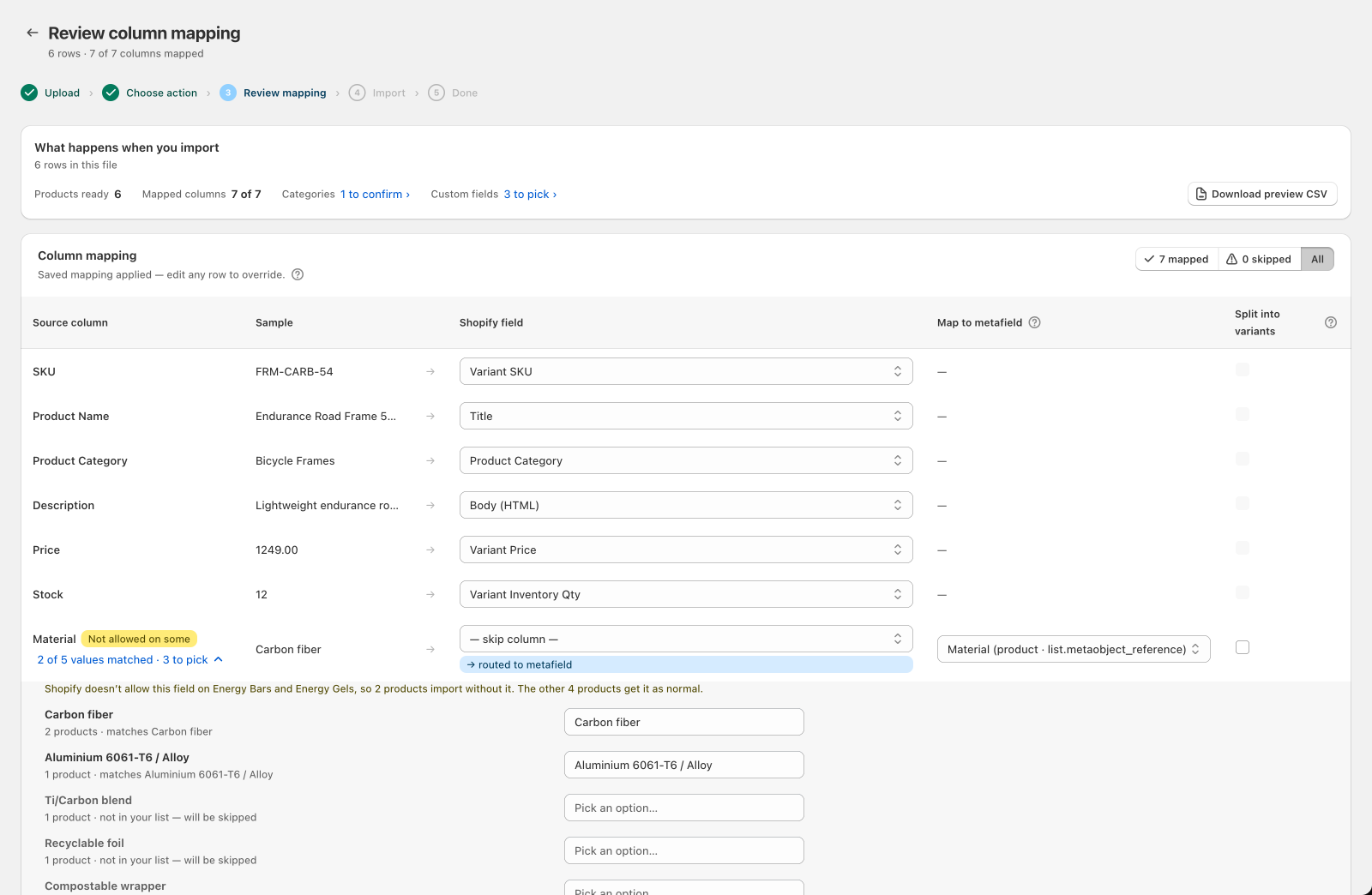
Most files cover more than one kind of product, so the usual case is that only some products are affected. The column is marked Not allowed on some, and a note says what it costs:
Shopify doesn't allow this field on Energy Bars and Energy Gels, so 2 products import without it. The other 4 products get it as normal.
The dropdowns stay, because the products in an allowed category still use whatever you pick.
When none of the products are in an allowed category, the column is marked Not allowed here instead. There's nothing to pick in that case, so Csvio explains the situation and leaves the dropdowns out:
Shopify only allows Material on certain product categories, and Bike Frames isn't among them. Those products import without it — everything else goes through.
The products still import either way. Only that one field is left off them.
You have two ways to fix it:
- Change the product's category — see Confirm Shopify product categories during import
- Widen the field — in Shopify admin, go to Settings > Custom data, open the field, and add the category your products use
What if Csvio can't check a value?
Sometimes a column shows one of these lines instead of matched values. Each has its own next step:
| The line reads | What to do |
|---|---|
| List is empty | Your list for this field has no entries yet. Add them in Shopify admin under Settings > Custom data, then import again. |
| Field not found | This field isn't in your store any more — usually a saved mapping pointing at a field that's since been deleted. Change the mapping on the row if you meant a different field. |
| List too long | Set these values in Shopify after the import finishes. |
| Couldn't check | Nothing's wrong with your file. Csvio checks again when you import. |
In all four cases the products import as normal, just without that one field.
What's next?
- Import spreadsheet columns into Shopify metafields — map a column to a custom field in the first place
- Confirm Shopify product categories during import — the card that decides which categories your products land in
- Preview an import before pushing to Shopify — check the rest of your mapping before importing
Was this article helpful?
Still need help? Open Support in the Csvio menu to send us a message, or email [email protected].