Bulk delete products from Shopify
Bulk delete permanently removes products from Shopify that match identifiers in your file. This action cannot be undone.
What should I do before a bulk delete?
Export your products first. Go to Shopify admin > Products > Export, and save a backup CSV. If you delete something by mistake, you can re-import the backup to restore it.
How do I bulk delete products from Shopify?
-
Upload a file that contains an identifier for each product you want to remove. This can be as simple as a one-column CSV of SKUs.
-
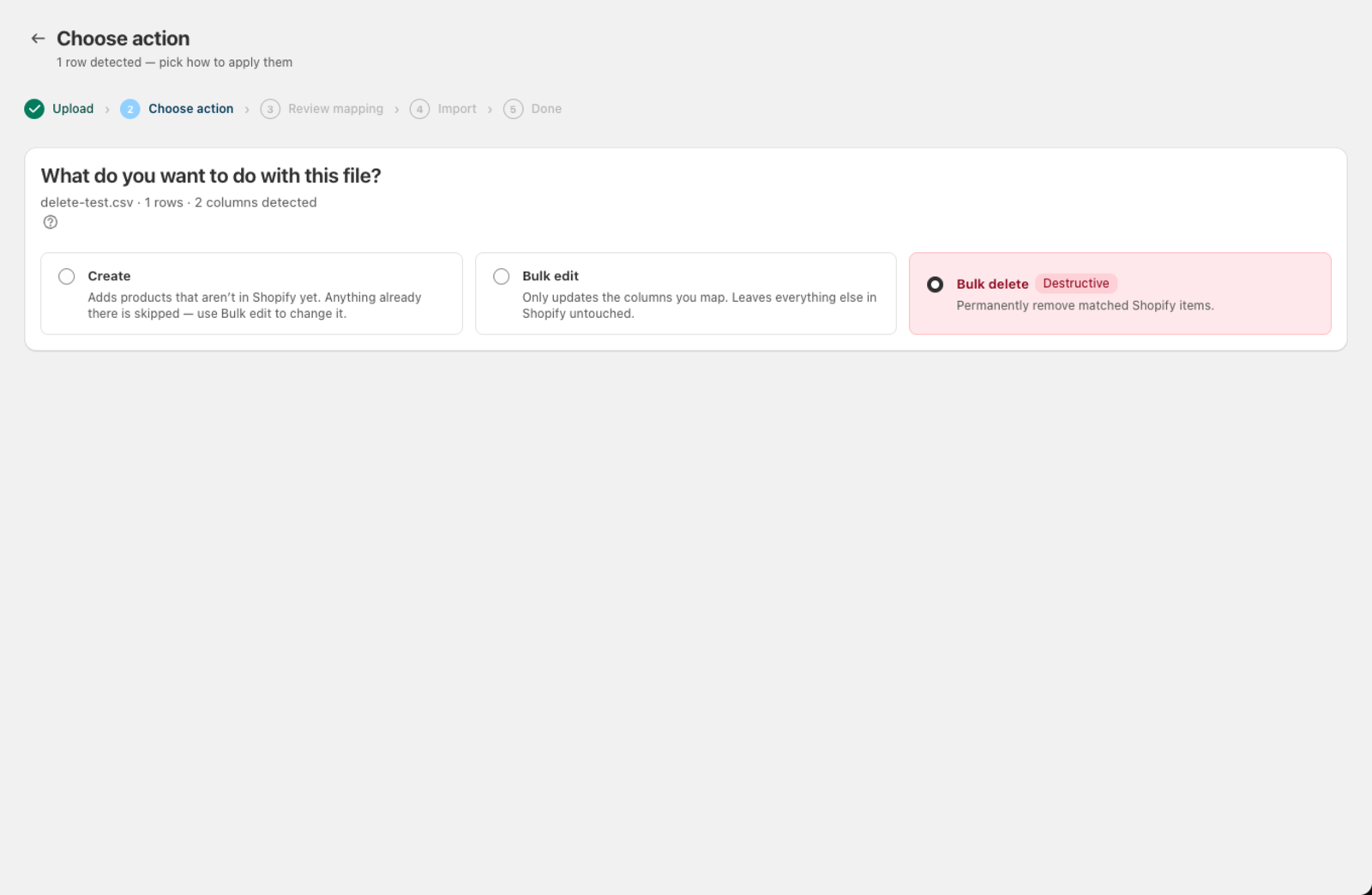
Select Bulk delete on the action screen (available on every paid plan). The card is marked Destructive in red.
- On the Review mapping screen, set the match rule — the Shopify field to match against (SKU, Barcode, Handle, Variant ID, or Product ID) and the column in your file that holds the identifier. Csvio suggests a column automatically when the header looks like one of these identifiers — click Use this to accept it.
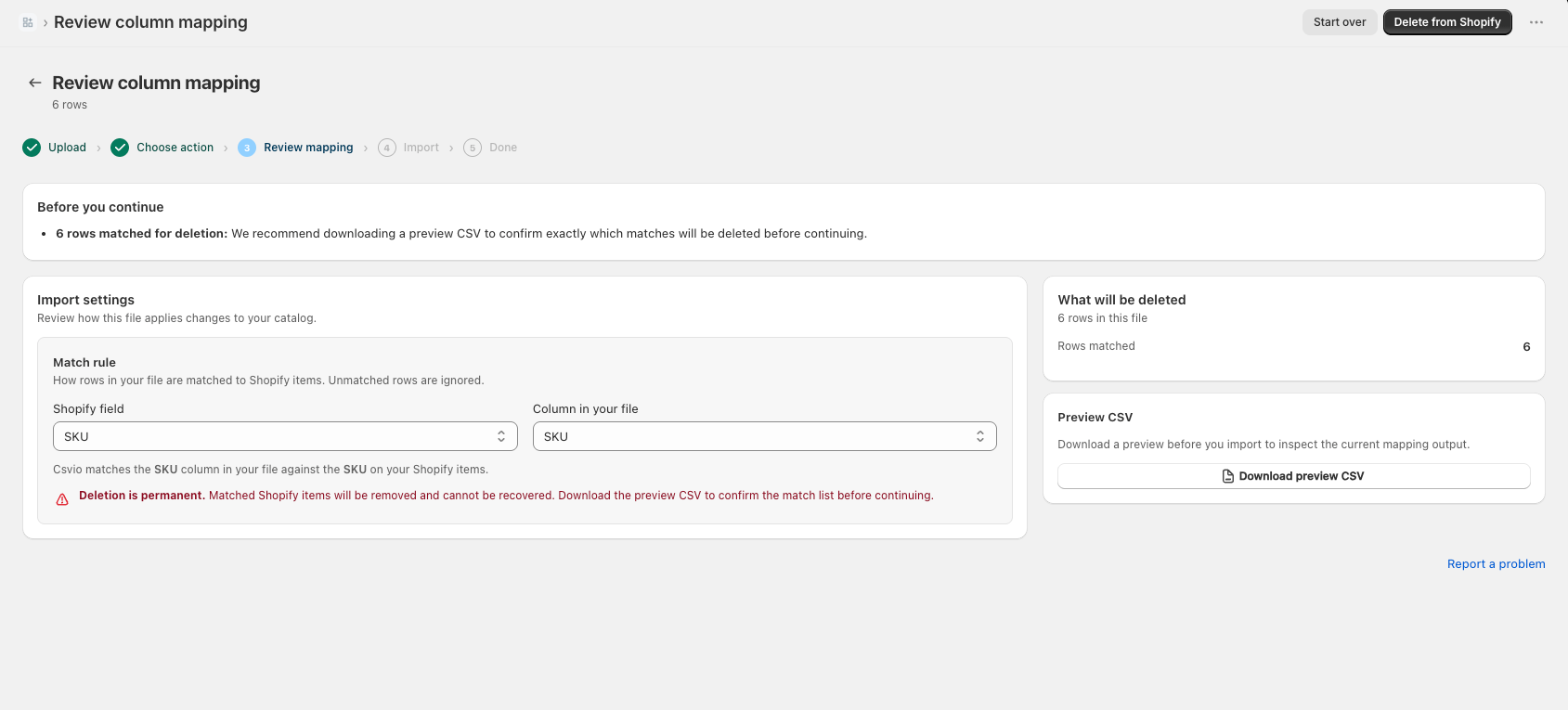
A "Before you continue" banner shows exactly how many rows matched something in your store, and a Preview CSV card on the side lets you download the match list to double-check before deleting anything.
- Click Delete from Shopify. A confirmation dialog restates that the deletion is permanent and that unmatched rows are simply skipped:
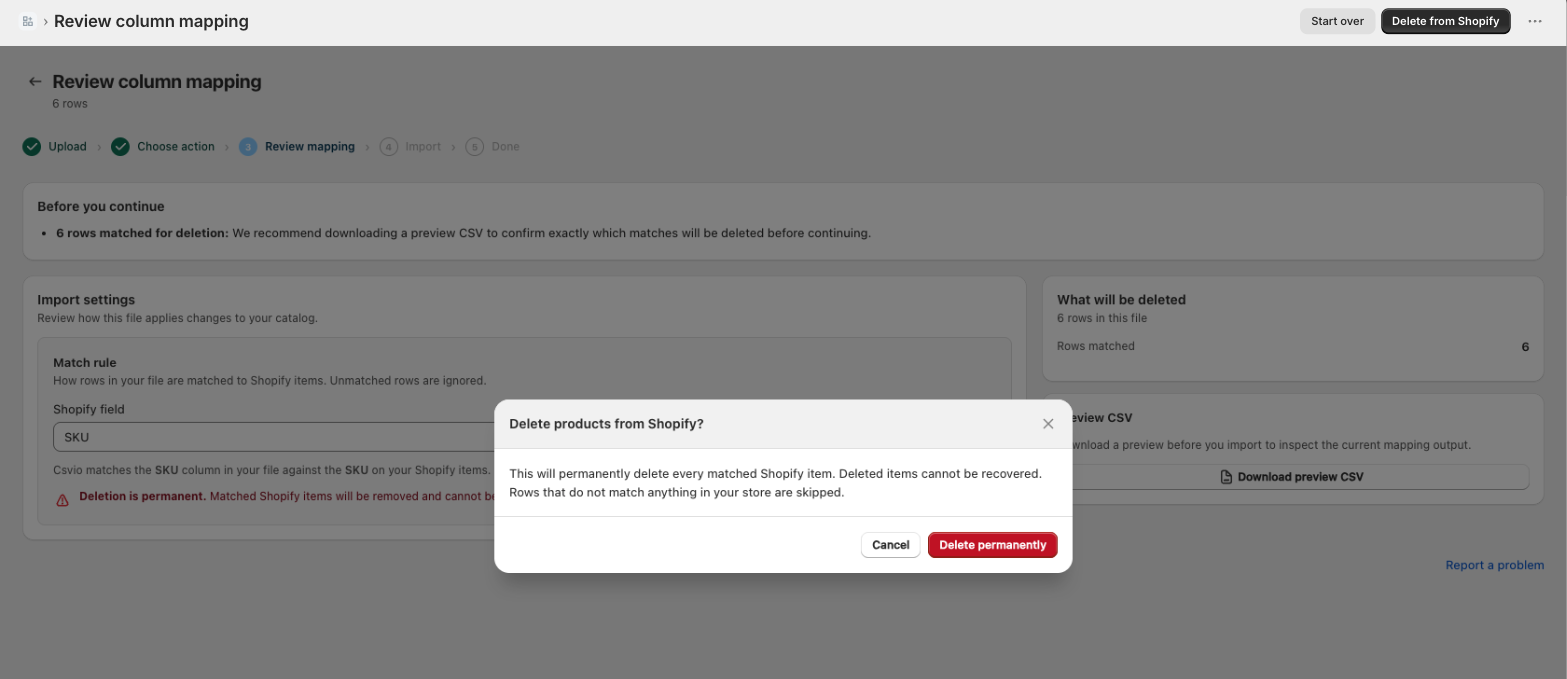
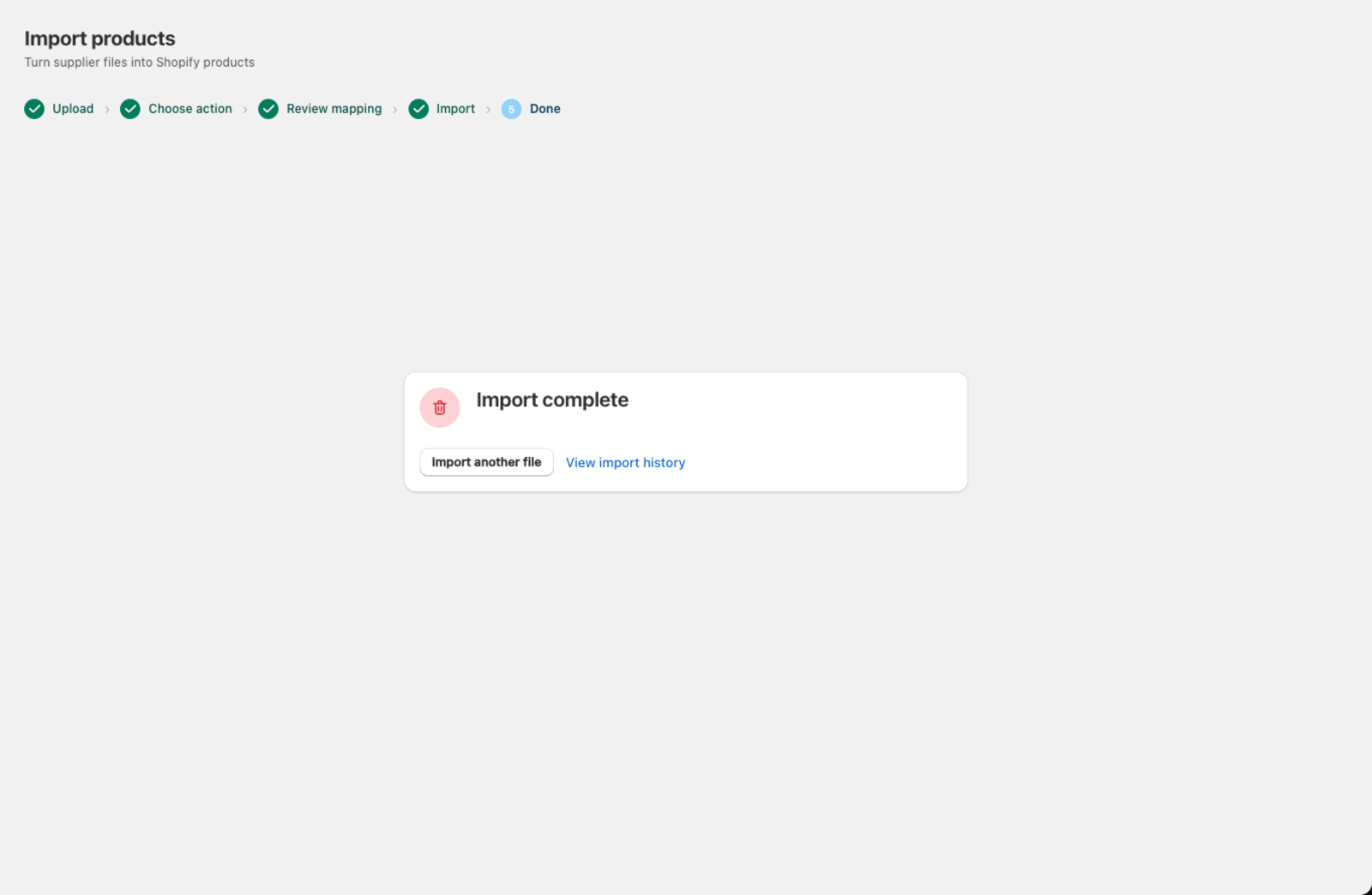
- Confirm again in the dialog to start the deletion.
What does bulk delete remove from Shopify?
- Every product in Shopify whose identifier matches a row in your file is permanently removed.
- All variants, images, and metafields associated with that product are also deleted.
- Products that don't match any row in your file are left untouched.
Which rows does bulk delete skip?
- Rows with blank or empty identifier values.
- Rows where no matching product is found in Shopify.
- Duplicate identifiers within the same file (only the first occurrence is processed).
Tips
- Use the preview CSV to double-check the match list before confirming. This is especially important for large deletions.
- If you only need to archive products (hide them from your store without deleting), use Bulk edit mode instead and set the Status column to "Archived".
- To delete by variant (e.g. remove specific sizes but keep the product), use Variant ID as the match field.
Was this article helpful?
Still need help? Open Support in the Csvio menu to send us a message, or email [email protected].