Preview an import before pushing to Shopify
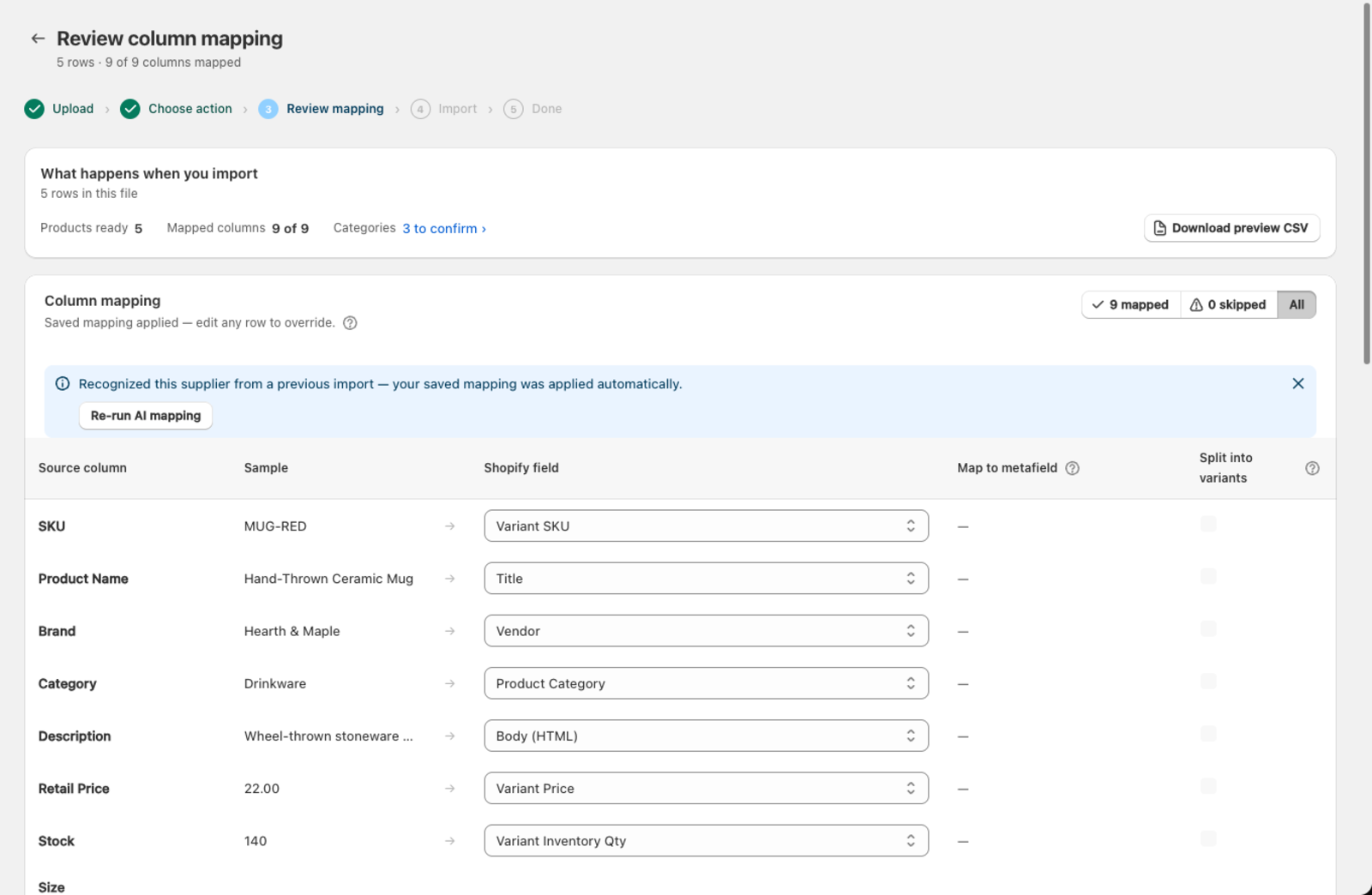
The preview (also called a dry run) lets you check the import output before anything is sent to Shopify. It builds a sample of what the final products will look like based on your file and current mapping.
How do I run a preview?
- Upload your file and choose an import mode.
- Review the column mapping.
- Click Download preview CSV in the summary card on the mapping screen.
Csvio processes your file with the current mapping and generates a preview CSV. When it's ready, a download link appears. Open the file to inspect the products, variants, and field values that would be created.
What does the preview show?
The preview CSV is a Shopify-formatted file with one row per variant. Check it for:
- Correct titles and descriptions — make sure the right columns were mapped
- Prices and inventory — verify numbers look right
- Variants — confirm products are grouped correctly with the right options
- Images — check that image URLs appear in the right places
What does the import summary mean?
For a Create import, the mapping screen shows a "What happens when you import" card that breaks the file down by outcome:
| Label | Meaning |
|---|---|
| Products ready | Rows that will become new products — a SKU that doesn't exist in your store yet |
| Skipped | Rows whose SKU already exists in your store — Create never overwrites, so these are left out. See Why rows are skipped |
When should I use a preview?
- First import from a new supplier — verify the mapping is correct before creating hundreds of products
- After changing the mapping — confirm your adjustments produce the expected output
- Large files — spot-check a sample before committing to a long import
How many rows does the preview include?
The preview CSV includes up to the first 100 rows of your file. For larger files, use the preview to spot-check formatting and mapping accuracy — the full import processes all rows.
Can I preview a Bulk edit?
Bulk edit writes directly to the fields you map as soon as you click Apply bulk update, so there's no separate preview step for this mode. Double-check your match key and column mapping on the review screen before applying — see Update prices from a supplier file or Bulk edit products for a walkthrough of that screen.
Can I preview a Bulk delete?
Bulk delete shows a Preview CSV card on the mapping screen so you can download the exact match list before confirming a permanent deletion. See Bulk delete products from Shopify.
Is the preview available on the Free plan?
Yes. The preview download works on every plan, with up to 100 rows in the CSV. Free and Starter don't list it as a separate row on the Account & billing page, because the monthly products are the number that matters there — but the Download preview CSV button on the mapping screen isn't restricted.
Was this article helpful?
Still need help? Open Support in the Csvio menu to send us a message, or email [email protected].