File types and size limits for Shopify imports
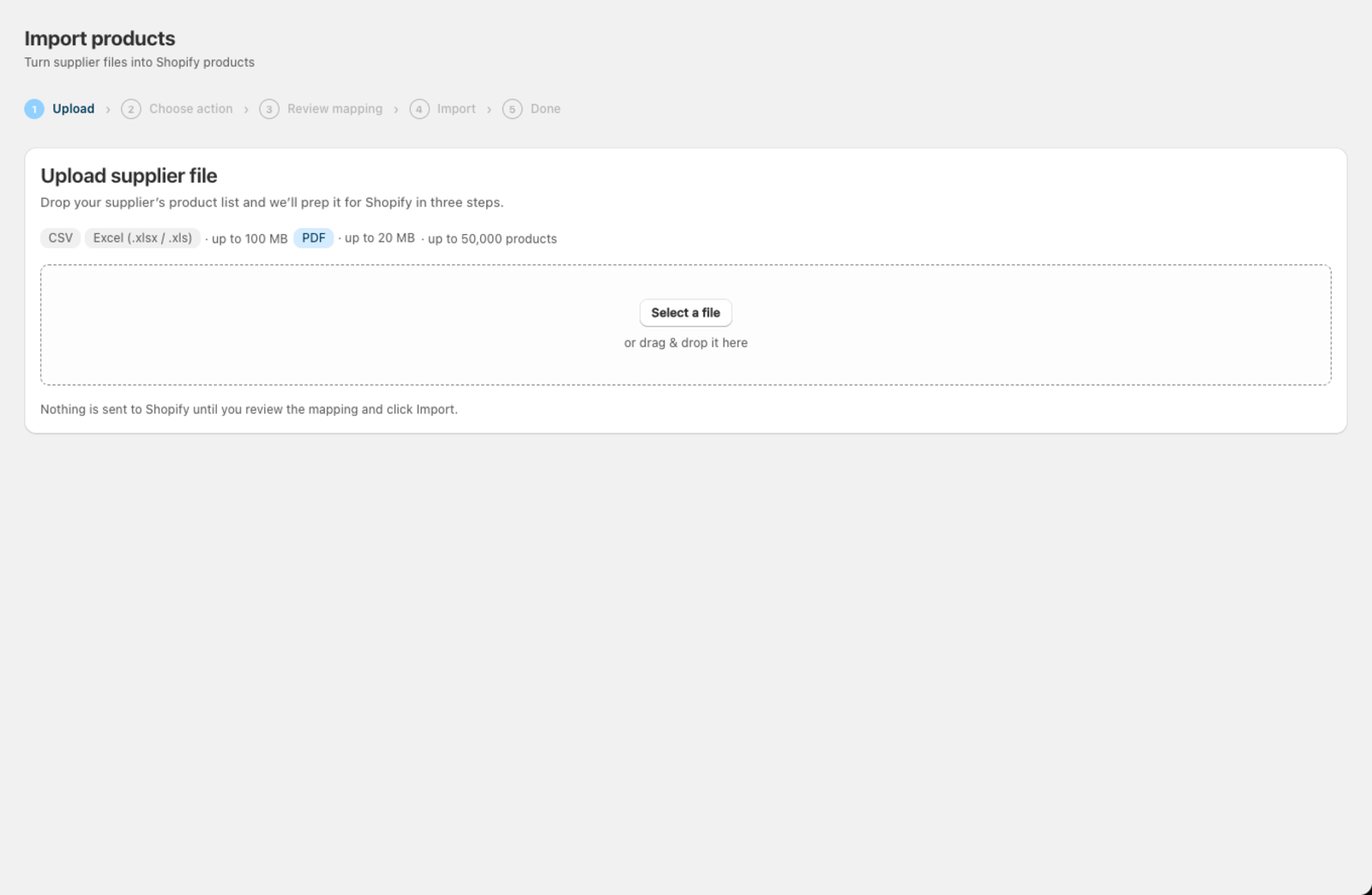
Csvio imports CSV, Excel (.xlsx and .xls), and PDF files into Shopify. How many products you can import at once depends on your plan.
What file formats does Csvio support?
| Format | Extensions | Notes |
|---|---|---|
| CSV | .csv | Comma-separated values, UTF-8 encoding recommended |
| Excel | .xlsx, .xls | Both modern and legacy Excel formats |
| Tables extracted automatically (Pro plan only) |
What are the size and row limits for Csvio imports?
Limits depend on your plan:
| Free | Pro | |
|---|---|---|
| Products per import | 100 | 50,000 |
| Imports per month | 3 | Unlimited |
| PDF imports | Not available | Included (up to 30 per month) |
The file size limit is displayed on the upload screen for your current plan.
How should I format my file for a clean import?
For the cleanest import, your file should follow these guidelines:
- Column headers in row 1. Csvio reads the first row as headers. If your file has a title row or blank rows above the data, remove them.
- One row per product or variant. Each row should represent a single product or a single variant of a product.
- No merged cells. If using Excel, unmerge any cells before uploading — merged cells can cause rows to shift or data to be misread.
- Blank rows are skipped. Csvio ignores empty rows anywhere in the file — a stray blank row won't cut your import short. Removing them still keeps your data tidy.
How do I fix garbled characters in a CSV import?
Csvio reads CSV files as UTF-8 by default. If your file contains accented characters (e.g. "Robe en été") or non-Latin scripts and they appear garbled after import, the file may be saved in a different encoding.
To fix this: Open the file in your spreadsheet application and re-save it as "CSV UTF-8" or "CSV (UTF-8, comma-delimited)".
What should I check in an Excel file?
- If your workbook has multiple sheets, Csvio reads the first sheet by default. You can switch sheets on the action screen if needed.
- Remove any summary rows, totals, or footer rows at the bottom of your data — they may be imported as products.
- Avoid formulas that reference other sheets — Csvio reads cell values, not formulas.
Can I import a PDF catalog?
On the Pro plan, Csvio extracts product tables from PDF files automatically. This works best with:
- PDFs that contain structured tables (price lists, catalogues with columns)
- Clear column headers
- Files up to 20 MB
Scanned images of printed documents may not extract cleanly. If the result doesn't look right, try converting the PDF to Excel or CSV first using another tool, then upload that file instead.
Was this article helpful?
Still need help? Open Support in the Csvio menu to send us a message, or email [email protected].