Bulk edit Shopify products from a spreadsheet
Bulk edit updates only the columns you choose to map. Unlike Create, it doesn't touch fields you haven't mapped and it never creates new products.
When should I use Bulk edit?
- Update prices from a supplier price list without changing product descriptions
- Adjust inventory quantities without affecting images or tags
- Add or replace tags across a set of products
- Replace the photos on a set of products
- Change product titles, descriptions, or any other field in isolation
- Push through changes on products a Create import skipped because they already existed
How does Bulk edit work?
- Upload your file and select Bulk edit on the action screen.
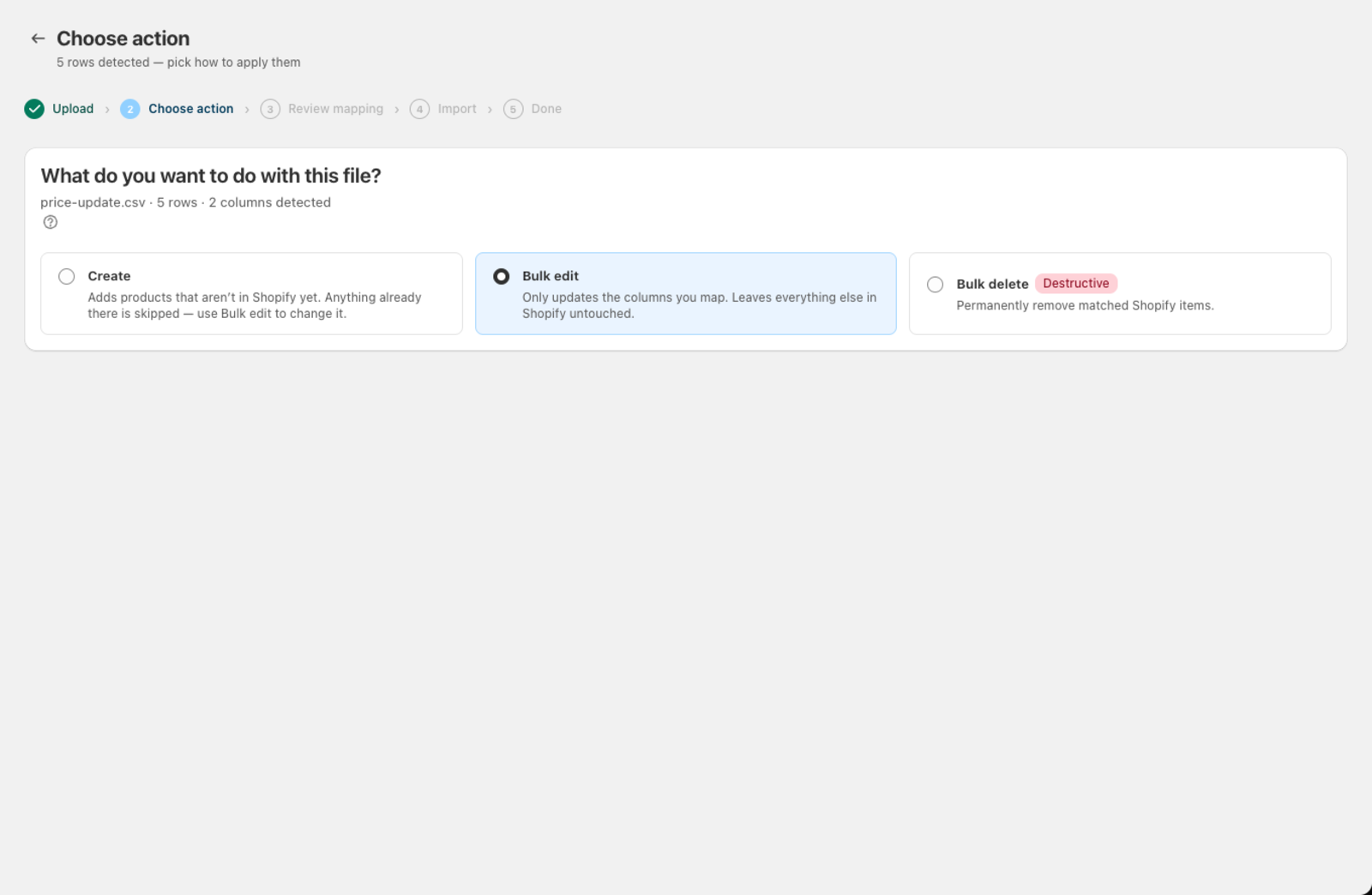
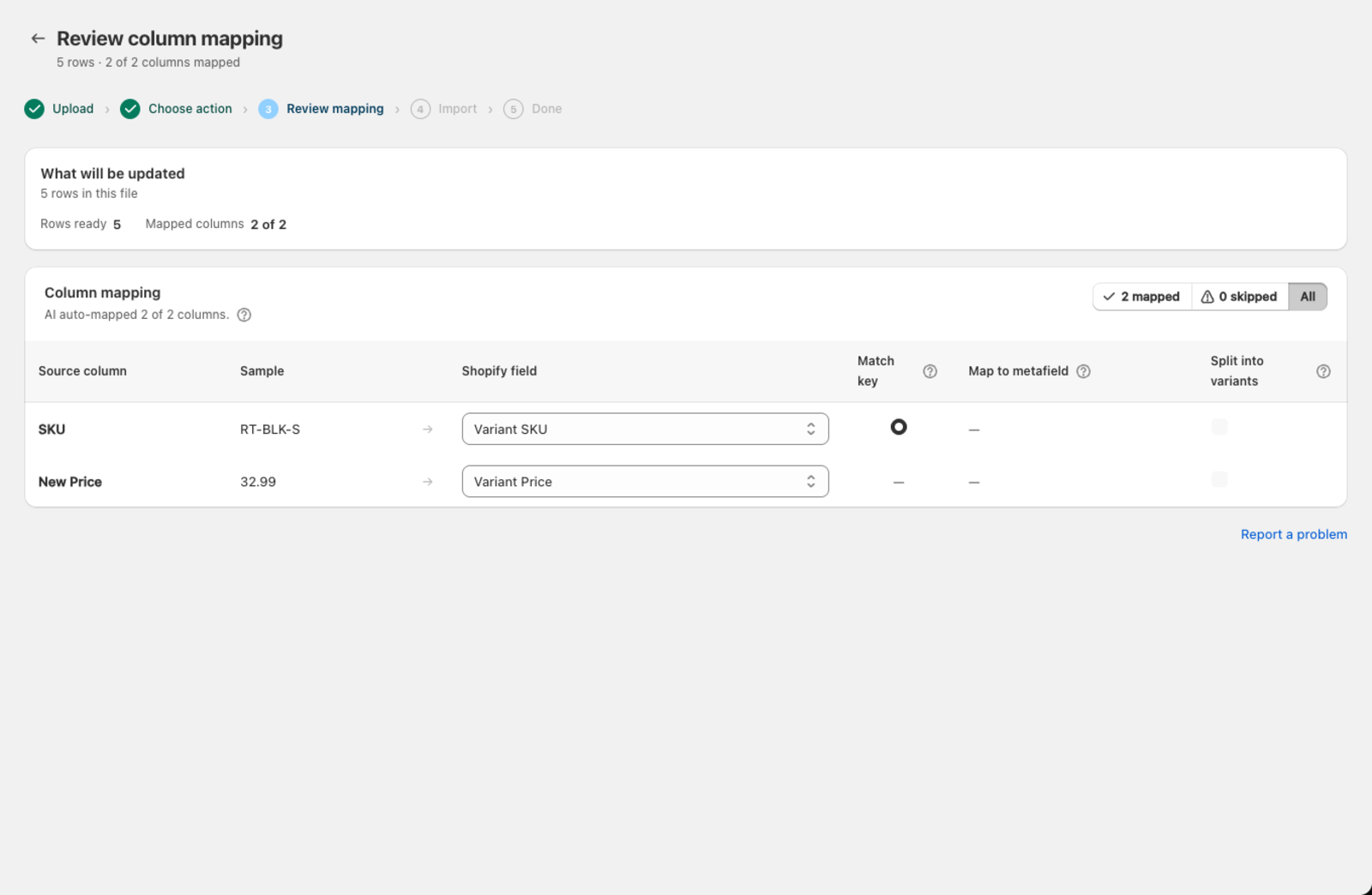
- On the Review mapping screen, choose a Match key — the column in your file that identifies each product. Options include SKU, Barcode, Handle, Variant ID, or Product ID. The mapping table shows a dedicated Match key column with a radio button next to the row you pick.
-
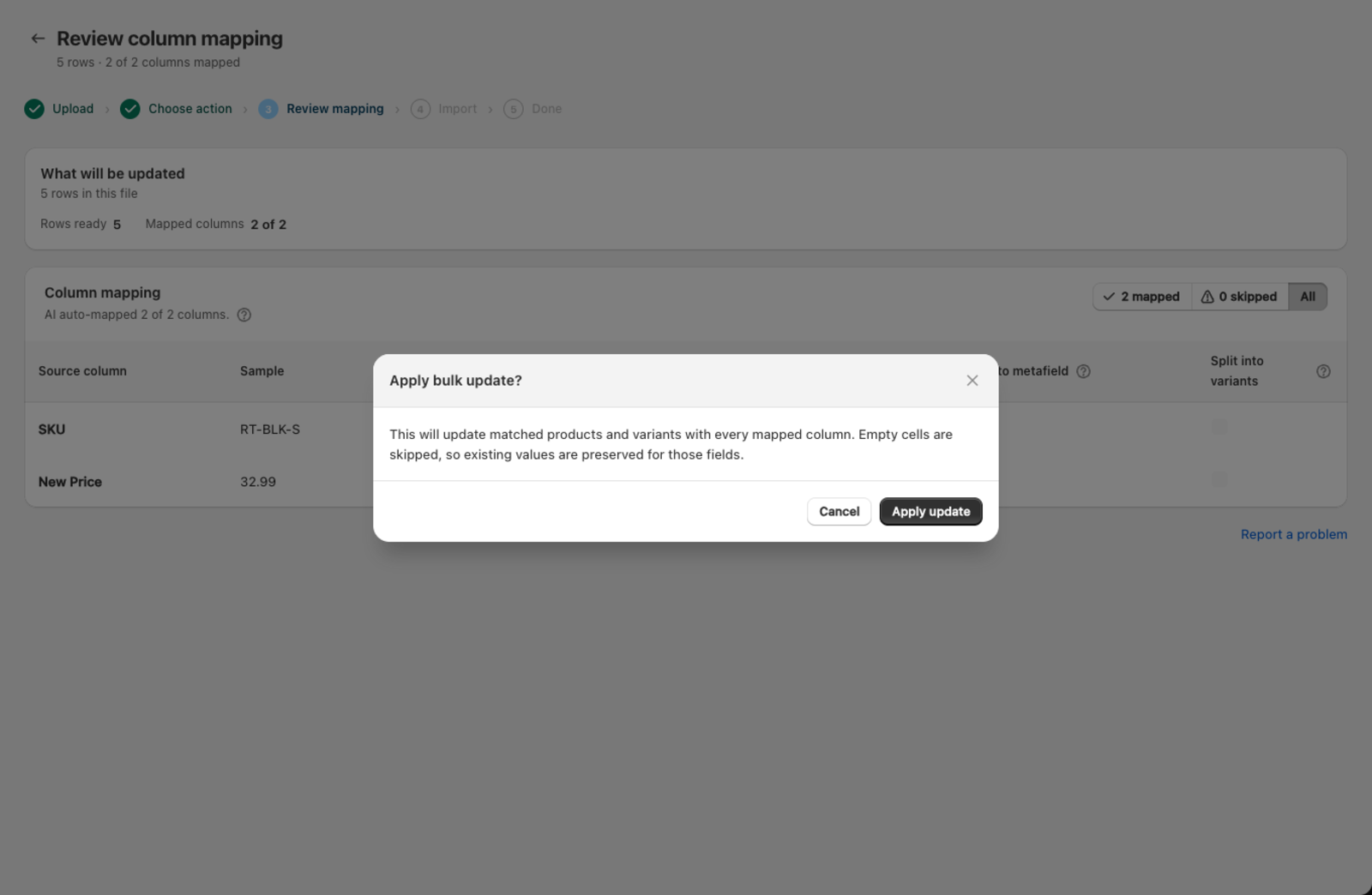
Map only the columns you want to update. Skip everything else. Csvio only writes the fields you map — and skips a blank cell in a mapped column too, so it never erases a value that's already there.
-
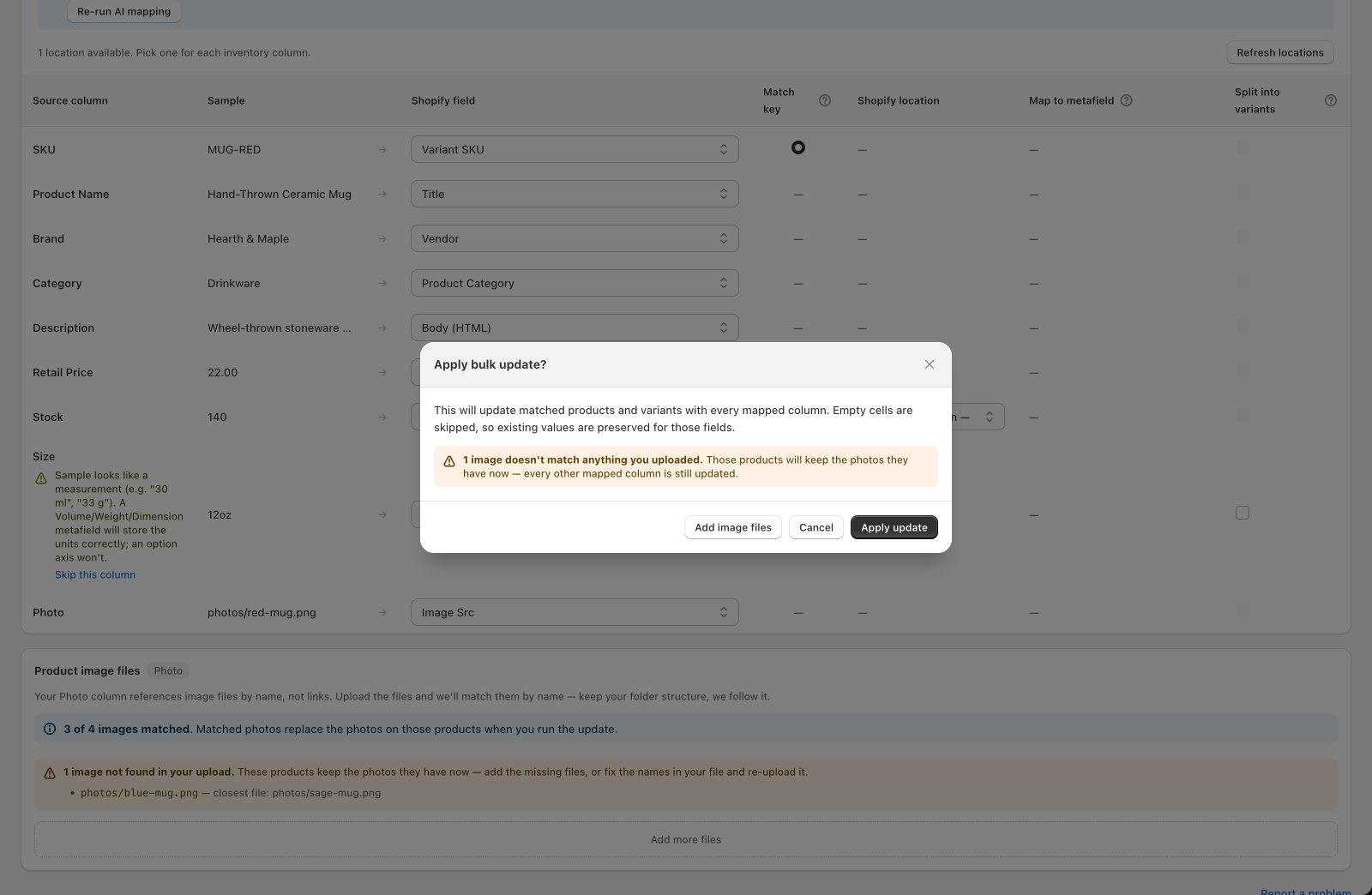
Click Apply bulk update. A confirmation dialog restates what's about to happen before anything changes:
Can Bulk edit update product photos?
Map an image column to Image Src (or Variant Image) and Bulk edit updates photos too. Photos are replaced, not added to — the photos in your file become the product's photos, and anything already there is removed. Leave the image column unmapped and the photos stay as they are.
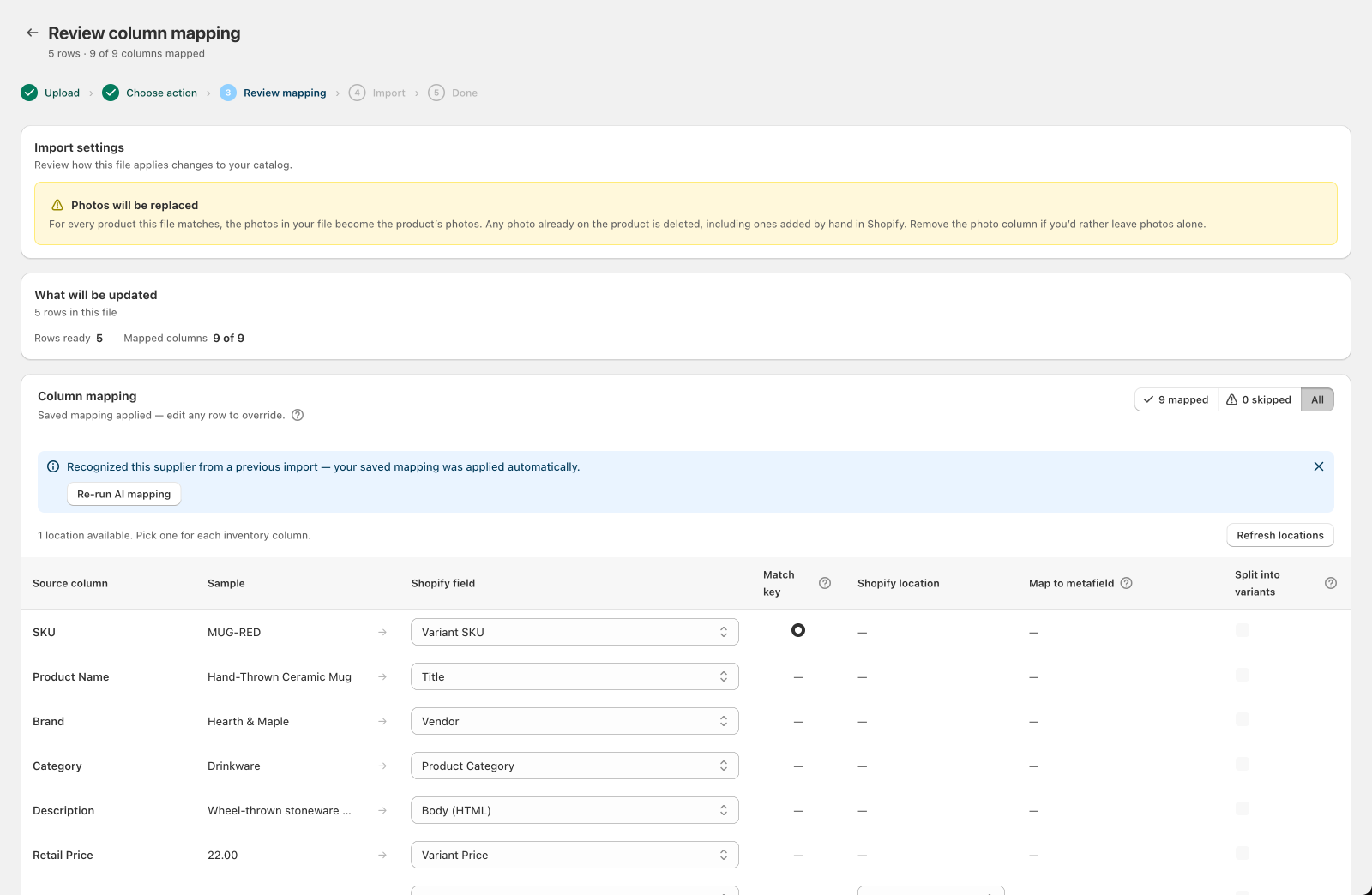
Your file can point at photos two ways:
https://links — Shopify downloads them, the same as on a Create import.- File names (
red-mug.jpg) — a Product image files card appears below the mapping table where you upload the actual photos, and Csvio matches them by name. See Upload product photos from your computer.
When a photo is missing
If any photo on a row isn't in your upload, Csvio holds back all of that row's photos and leaves that product's photos as they are. It doesn't apply a partial set, which would remove photos your file never asked to replace.
The rest of the row still goes through — price, stock, tags, and every other mapped column are updated, and the row counts as a success.
The confirmation dialog shows the count before you apply, with an Add image files button:
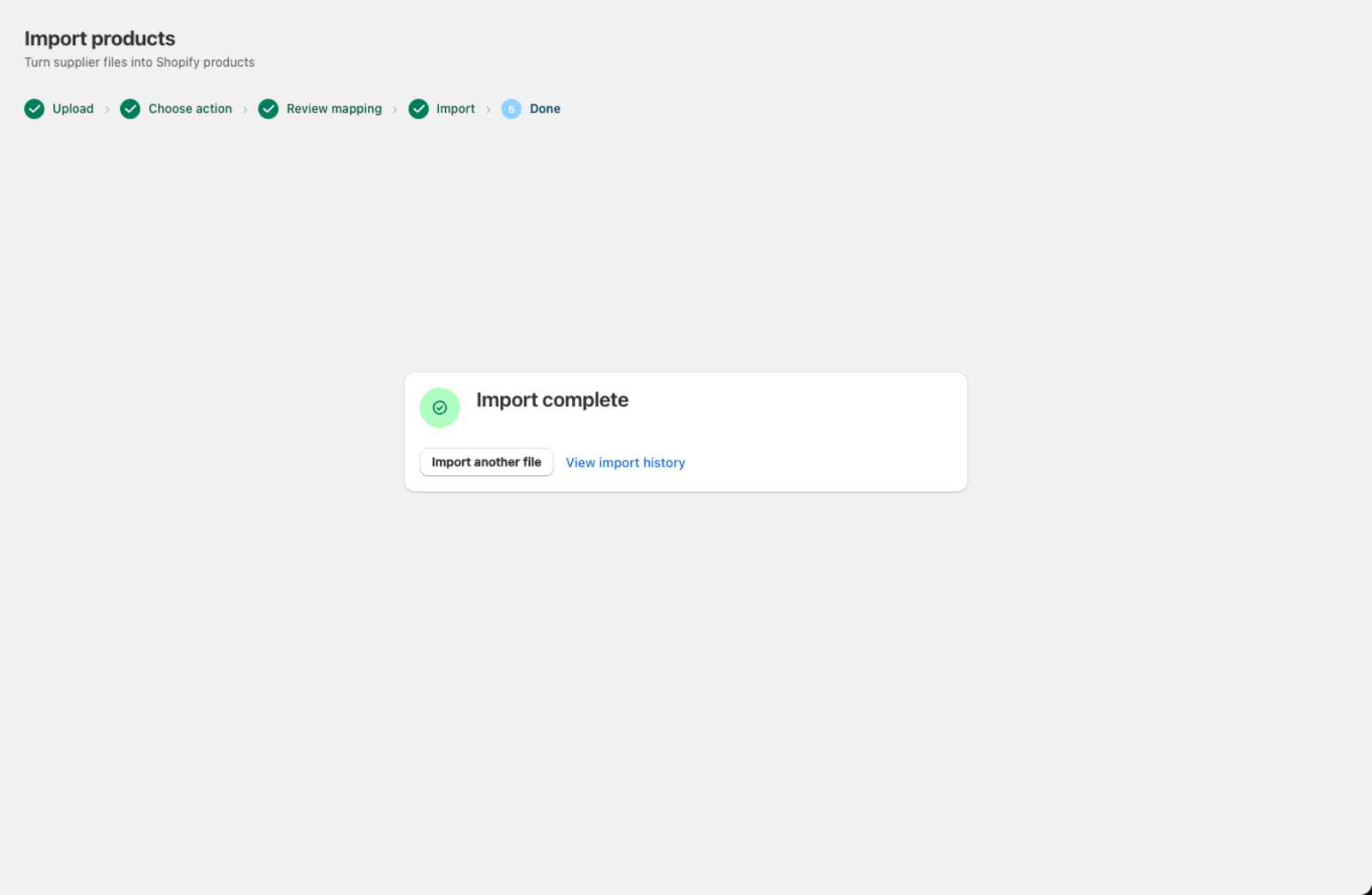
The Done screen shows how many products kept the photos they already had.
How are tags updated in a Bulk edit?
When you map a Tags column in Bulk edit mode, a dropdown appears asking how tags should be applied:
| Strategy | What happens |
|---|---|
| Replace | Removes all existing tags and sets only the ones from your file |
| Append | Keeps existing tags and adds the new ones from your file |
| Remove | Removes the tags listed in your file from the product, leaving all other tags |
Which rows does Bulk edit skip?
- Rows where the match key (e.g. SKU) doesn't exist in Shopify — Bulk edit only updates, it never creates.
- Rows where the match key is blank or missing.
- Rows with duplicate match keys within the same file (only the first occurrence is used).
See Why rows are skipped during import for the full list.
Once the update finishes, the Done screen confirms it — a bulk edit doesn't offer to name a supplier, since it doesn't create a snapshot the way Create does.
How do I update only prices?
Say you receive a price list from your supplier with two columns: SKU and New Price.
- Upload the file and choose Bulk edit.
- Set SKU as the match key.
- Map "New Price" to Variant Price. Leave all other columns unmapped.
- Click Apply bulk update.
Csvio finds each product by SKU and updates only the price. Descriptions, images, tags, inventory — everything else is untouched.
For a full walkthrough, see Update prices from a supplier file. To replace product photos in a Bulk edit, see Upload product photos from your computer.
Was this article helpful?
Still need help? Open Support in the Csvio menu to send us a message, or email [email protected].