How Csvio maps supplier columns to Shopify fields
When you upload a file, Csvio's AI automatically suggests which Shopify field each column should map to — including columns named in another language, or using a supplier's own shorthand like "RRP" or "Artikelnummer." This means you don't need to rename columns or reformat your file to match Shopify's format.
While it works, a "Processing your file" card shows your file being analyzed. It usually takes a few seconds, longer for files with many columns.
Which columns does Csvio map?
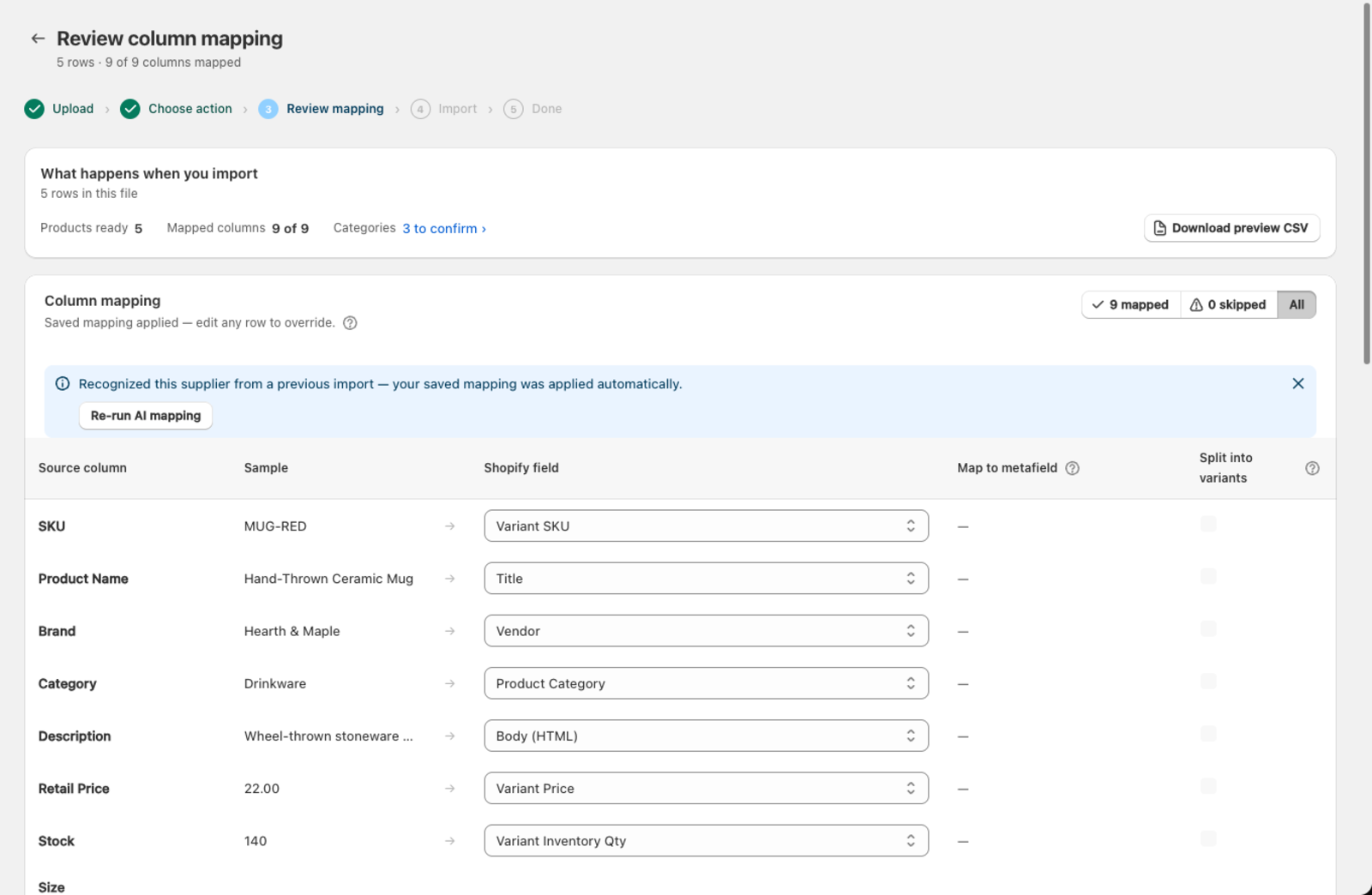
The AI can map to any standard Shopify product field, including:
- Title, Body (description), Vendor, Product type, Tags
- Variant Price, Compare at price, Variant Cost (per item)
- Variant SKU, Barcode
- Weight and weight unit
- Variant Inventory Qty
- Option names and values (up to 3), including packed cells split into variants
- Image Src and alt text
- Status (Draft / Active / Archived)
- SEO title and description
- Metafields (existing ones, or new ones you create right from the mapping screen)
Which columns does Csvio skip?
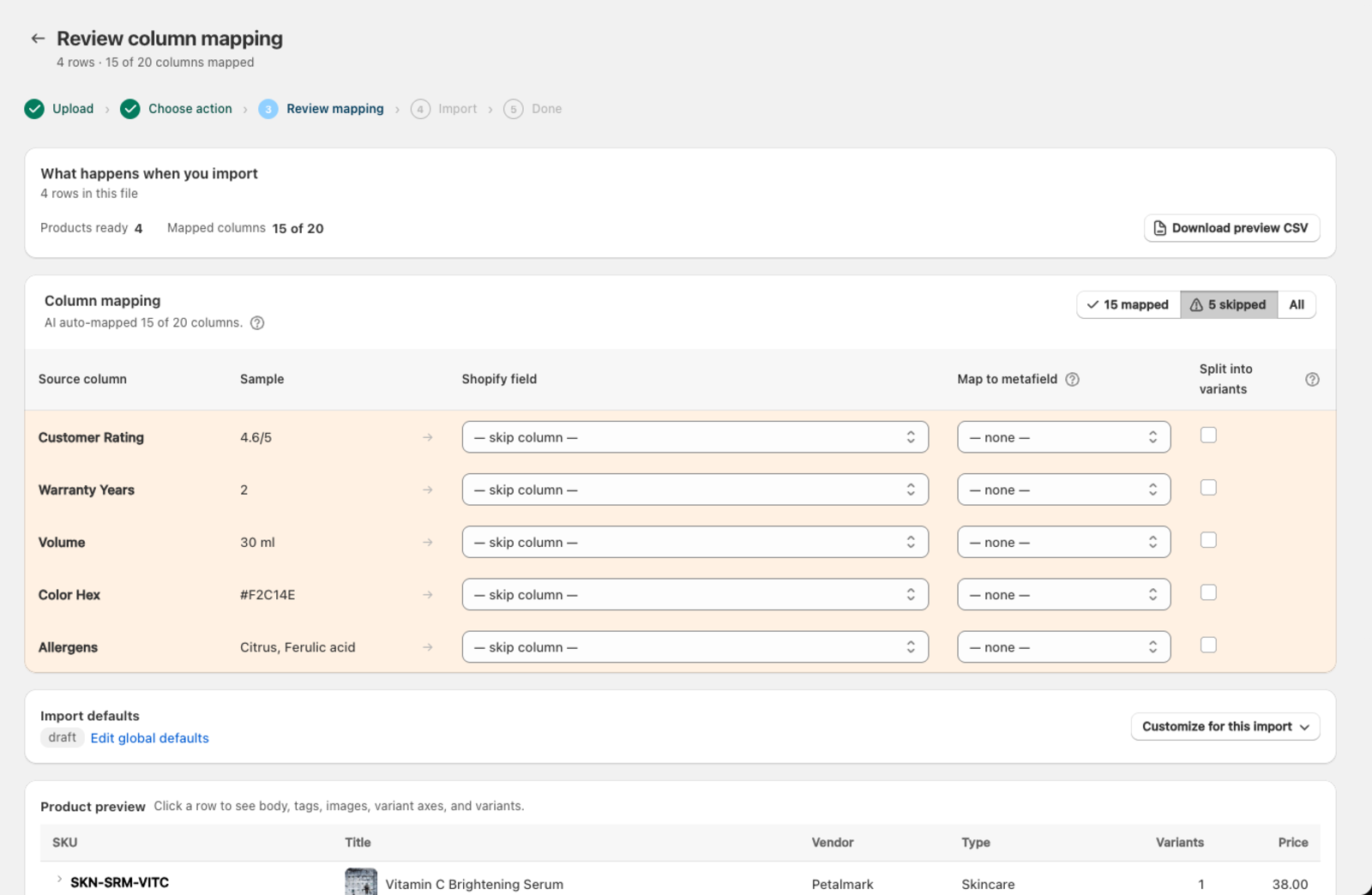
Columns the AI can't confidently match are set to skip column. This is intentional — it's better to skip an ambiguous column than map it incorrectly. When a skipped column still has real data in it, a banner above the table calls it out by name so it doesn't slip past you:
5 columns with data aren't mapped yet. Customer Rating, Warranty Years, Volume and 2 more won't be imported.
Click Review skipped columns to jump straight to them — from there you can map each one to a Shopify field, or create a metafield for anything Shopify doesn't have a standard field for.
Does Csvio remember my mapping?
After your first import from a supplier, Csvio saves the mapping. The next time you upload a file with the same column layout, the saved mapping is applied instantly — the mapping screen shows a banner confirming it recognized the supplier.
You can view saved mappings on the Suppliers page. If you need a fresh suggestion, click Re-run AI mapping on the mapping screen to discard the saved mapping and map the columns again from scratch.
How do I change a mapping?
If a mapping doesn't look right:
- Find the row in the mapping table.
- Open the Shopify field dropdown.
- Select the correct field, or choose skip column to ignore it.
Your changes are saved automatically for future imports from the same supplier.
See Fix an incorrect column mapping for common cases where the AI gets confused.
Was this article helpful?
Still need help? Open Support in the Csvio menu to send us a message, or email [email protected].