Import spreadsheet columns into Shopify metafields
Metafields let you store custom data on Shopify products beyond the standard fields. If your file includes columns like "Material", "Country of Origin", or "Warranty Years", you can map them to metafields so the data appears in your Shopify admin and storefront.
Which columns should I map to metafields?
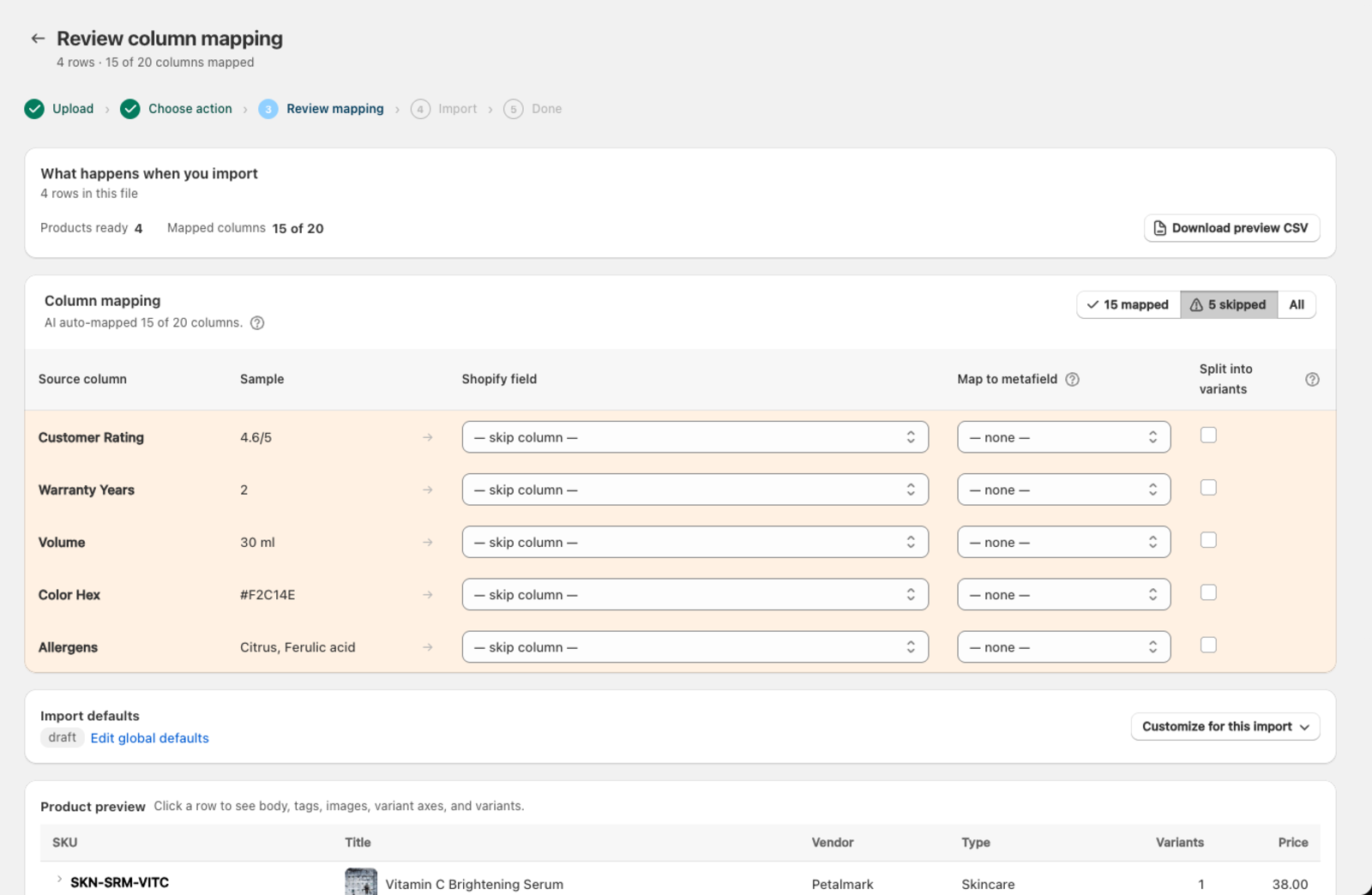
When the AI mapping finishes, a banner above the table calls out any column that has real data but wasn't matched to a standard field — these are exactly the columns worth routing to a metafield instead of leaving out:
How do I map a column to a metafield?
- Upload your file and go to the mapping screen.
- Find the column you want to map (e.g. "Warranty Years").
- In the Map to metafield cell for that row, open the dropdown. It lists any metafields already defined in your store, plus + Create new metafield….
- Pick an existing metafield, or create a new one (see below).
The Shopify field cell for that row switches to "skip column" — the value isn't going to a standard field — and the metafield dropdown shows your choice. The column's values are written to that metafield on each product.
Can I create a new metafield during import?
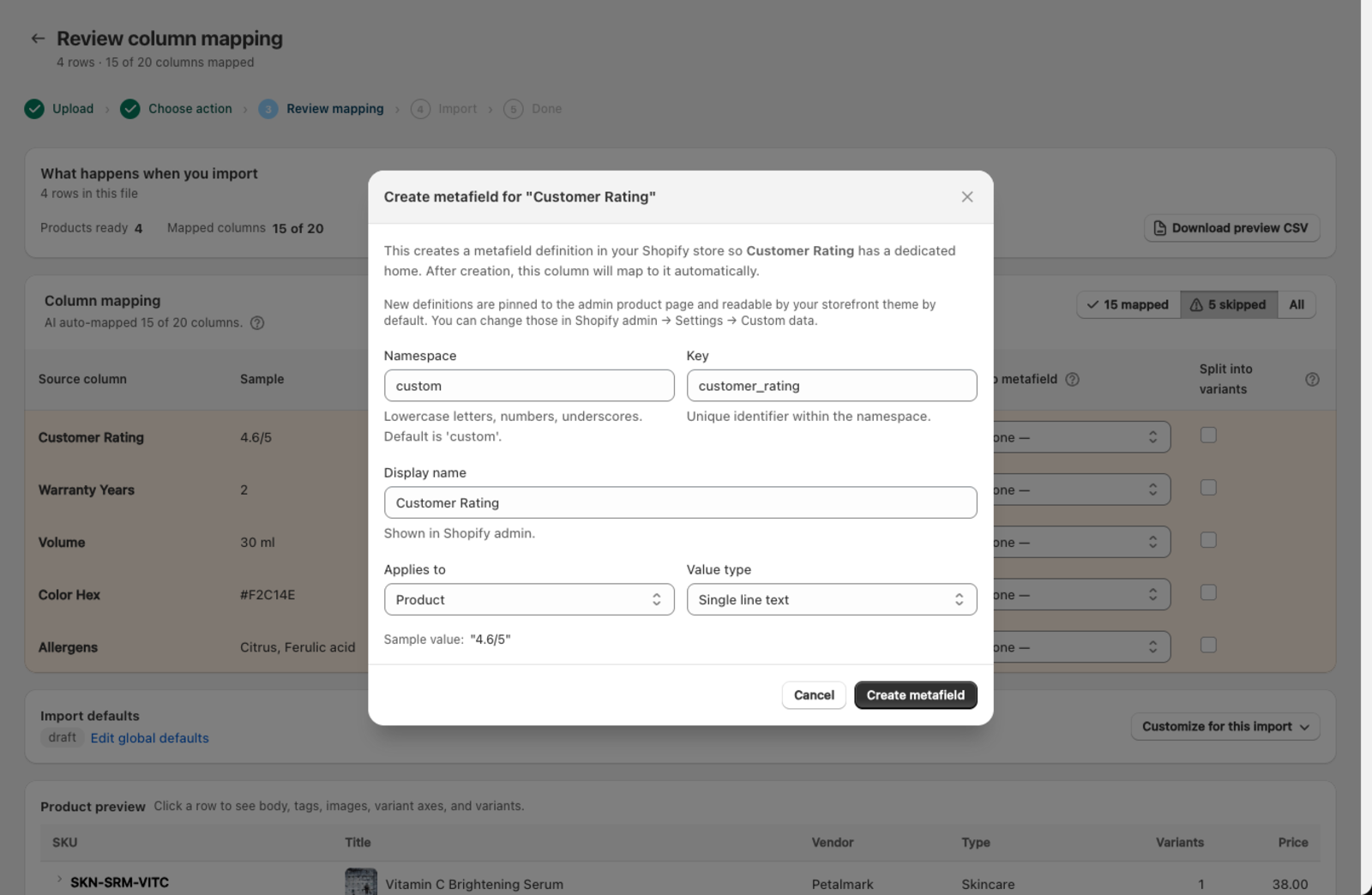
Choosing + Create new metafield… opens a dialog with the column's data already filled in:
| Field | What to enter | Default |
|---|---|---|
| Namespace | Grouping key for related metafields — lowercase letters, numbers, underscores | custom |
| Key | Unique identifier within the namespace | Auto-generated from your column name |
| Display name | Human-readable label shown in Shopify admin | Your column name |
| Applies to | Product or Variant | Product |
| Value type | Text, number, boolean, URL, and more | Auto-detected from your data |
A sample value from your file is shown at the bottom so you can confirm the type looks right before creating it. Click Create metafield and the definition is created in your Shopify store immediately — it's pinned to the admin product page and readable by your storefront theme by default. You can change either of those from Shopify admin > Settings > Custom data.
Can I use metafields I've already defined?
If you've already defined metafields in Shopify admin > Settings > Custom data > Products (or Variants), they appear automatically in the Map to metafield dropdown. This is useful when you have metafields set up from another app or a previous import.
Which metafield types can I map to?
The Map to metafield dropdown lists the fields Csvio can fill from a spreadsheet column:
| Type | Example values | Notes |
|---|---|---|
| Single line text | "Cotton", "Made in Italy" | Most common for supplier data |
| Multi-line text | Long descriptions, care paragraphs | Preserves line breaks |
| Integer | 100, 42 | Whole numbers only |
| Decimal | 29.95, 0.5 | Numbers with decimal places |
| Boolean | true, false | Yes/no values |
| URL | https://example.com | Must be a valid URL |
| Date | 2026-01-15 | ISO 8601 format |
| Color | #ff5733 | Hex color codes |
| Money | 29.95 | Currency amounts |
| Weight / Dimension / Volume | 1.5 | Measurement values |
| Rating | 4.5 | Numeric ratings |
| JSON | Any structured data | For complex values — use with care |
| List types | Comma-separated values | Multiple values per product |
| Fields that pick from a list | "Carbon fiber", "Cotton" | Shopify's Material and similar. Csvio matches your text to the entries in your store — see below |
What about fields that pick from a list?
A few Shopify fields — Material is the usual one — don't store text. They store a pick from a list your store keeps, so a product points at an entry on that list rather than holding the word itself.
You map these the same way as any other field. Csvio then matches your file's text to the entries in your store, and shows you what each one became before anything is sent:
Ti/Carbon mix — 62 products · not in your list — will be skipped
Anything Csvio can't place is left blank on those products, and the products still import with everything else. You can correct any value and Csvio remembers it for next time. See Confirm custom field values during import for a walkthrough.
Tips
- Metafield mappings are saved per supplier, just like standard field mappings. Future uploads from the same supplier reuse the mapping automatically.
- If you need the metafield to appear on your storefront, connect the metafield definition to your theme in Shopify admin (Online Store > Themes > Customize).
- You can map multiple columns to different metafields in the same import.
- The namespace defaults to
custom, which is what Shopify uses for merchant-created metafields. Only change it if you have a specific reason.
What's next?
- Confirm custom field values during import — check what your values became before importing
- How AI column mapping works — how Csvio maps the rest of your columns
Was this article helpful?
Still need help? Open Support in the Csvio menu to send us a message, or email [email protected].