Assign products to Shopify collections during import
If your supplier file has a column for category or collection, map it to Shopify's Collection field and csvio sorts each product into the matching collection as it's created — no manual dragging afterward.
How do I map a column to Collection?
- Upload your file and go to the mapping screen.
- Find the column with your collection names — csvio usually spots it on its own if it's named something like "Collection" or "Collections".
- Open the Shopify field dropdown for that row and select Collection.
- Import as usual.
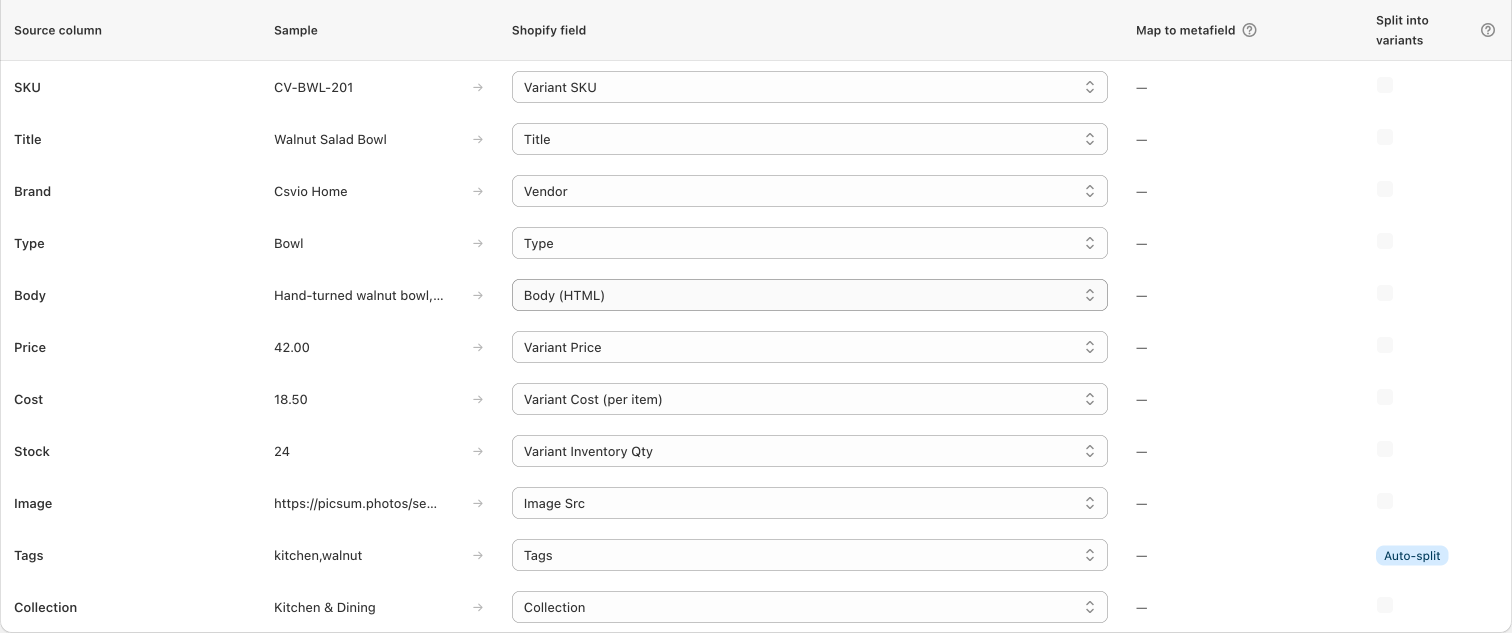
Each product is created first, then added to the collection(s) named in its row.
Can one product join more than one collection?
Yes. Separate multiple collection names in the same cell with a comma, or a pipe (|) if your collection names contain commas:
Kitchen & Dining, Gift Sets
What collections can I map to?
Only collections that already exist in your store — csvio matches your file's text against your store's collection titles and handles (case-insensitive), it doesn't create new collections. If you need a collection that doesn't exist yet, create it in Shopify admin > Products > Collections before importing.
Only manual collections (the kind you add products to yourself) can be targets. Automated collections — the ones that fill themselves from rules like "Type is Candle" — are skipped, since their membership isn't something an app can set directly.
What happens if a collection name doesn't match?
The product still imports normally — only the collection assignment for that name is skipped. Nothing about the mapping requires every name to match before you can import.
Tips
- Collection mappings are saved per supplier, just like standard field mappings — reuse is automatic on repeat imports from the same file layout.
- This is the same Collection field whether you're creating new products or bulk-editing existing ones with Bulk edit — see Bulk edit Shopify products from a spreadsheet.
- If your file's category values don't line up with your Shopify collections one-to-one, it's usually easier to map that column to Product Category or Tags instead — see How Csvio maps supplier columns to Shopify fields.
What's next?
- Import spreadsheet columns into Shopify metafields — map other custom columns the same way
- Confirm Shopify product categories during import — a related field that also matches against your store's existing data
Was this article helpful?
Still need help? Open Support in the Csvio menu to send us a message, or email [email protected].