See what changed in an updated supplier file
After choosing Sync changes from this supplier during a Resync, the "Review supplier changes" screen shows exactly what's different compared to your last import. This guide explains how to read and use it.
What do the summary badges show?
At the top of the screen, colored badges summarise the changes at a glance:
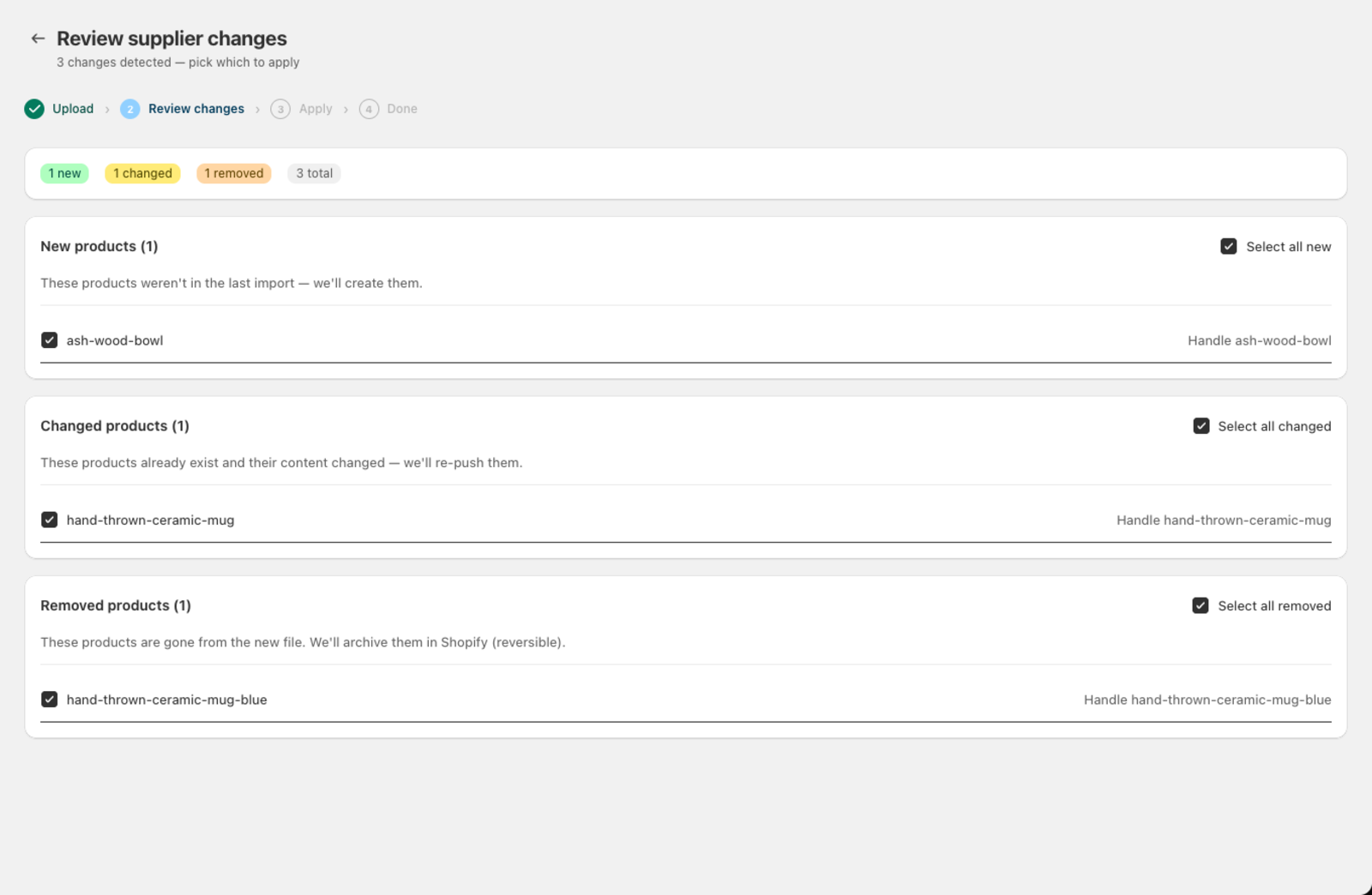
- New (green) — products in the new file that don't exist in the last import
- Changed (yellow) — products found in both files whose content changed since the last import
- Removed (red) — products from the last import that are missing in the new file
- Total — the combined count across all sections
Csvio compares whole products, not individual fields: each product in the new file is matched to the last import by its handle, and if anything about it changed, the product is listed under Changed.
What's in the New products section?
Each row shows the product's handle. These products will be created in Shopify when you apply the changes.
Use the checkbox to include or exclude individual products, or click Select all new at the top of the section.
What's in the Changed products section?
Each row lists the handle of a product whose content differs from the last import. Applying it re-pushes the whole product so Shopify matches the new file.
Use the checkbox to include or exclude individual products from the update.
What happens to removed products?
These are products that were in your last import but are no longer in the new file. When applied, they are archived in Shopify (not permanently deleted).
How do I apply the changes?
- Check the boxes for the changes you want to apply. You can select from any combination of New, Changed, and Removed sections.
- Click Apply N changes in the title bar. The button shows the count of selected changes.
- A progress screen tracks the push to Shopify — you can close the tab and it keeps running while you're away.
What happens after I apply the changes?
You'll see one of three results:
- Resync applied — all selected changes were successfully applied
- Resync applied with some failures — some changes succeeded, some failed. Successful changes are already in Shopify. Fix the source data for failed rows and re-upload.
- Resync couldn't complete — no changes were applied. Check the error message and try again.
Tips
- To apply only new and changed products and leave removals alone, tick the New and Changed sections and leave Removed unchecked.
- The diff compares against the last successful import, not the most recent upload. If your last import failed, the diff uses the one before it.
- For large files, only the first 100 changes are shown in each section with a note about how many were omitted.
- Resync matches products by handle — auto-generated from your SKU or title if you don't map a Handle column explicitly — so what feeds the handle needs to stay consistent between imports. See Resync requirements for details.
Was this article helpful?
Still need help? Open Support in the Csvio menu to send us a message, or email [email protected].