Create, bulk edit or bulk delete Shopify products
After uploading a file, Csvio asks what you want to do with it. Each mode handles your data differently — the choice matters, because it decides whether a matching product gets skipped, updated, or removed.
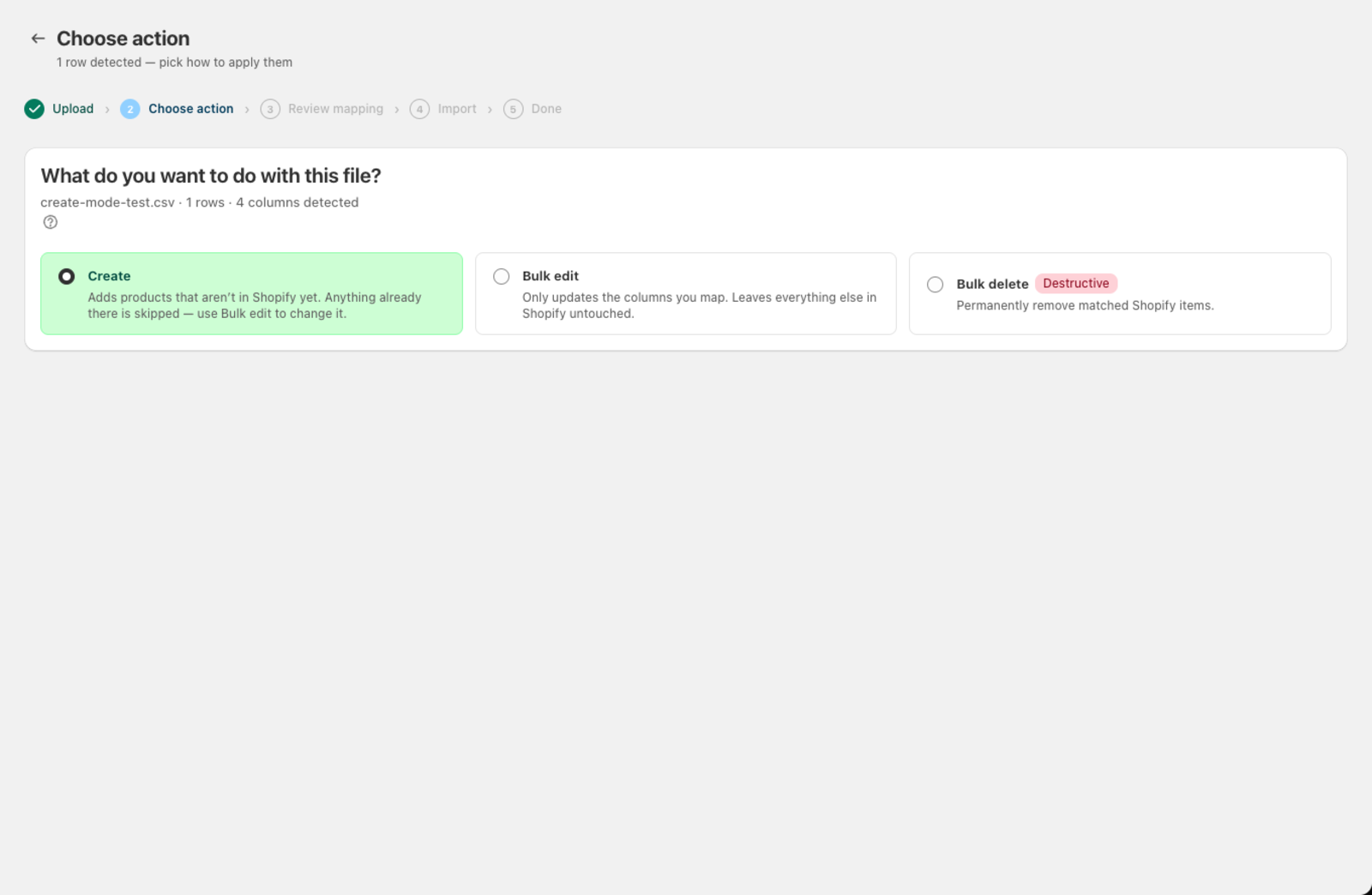
What does Create do?
What it does: Adds products that aren't in Shopify yet.
- Rows with a SKU that doesn't exist in your store → new product created
- Rows with a SKU that already exists → skipped and left untouched — Create never overwrites a product you already have
When to use it: A first import from a new supplier, or adding new items from a catalogue without touching anything already in your store. If you need to change fields on products you already imported — a new price, an updated description — use Bulk edit instead.
Available on all plans.
What does Bulk edit do?
What it does: Updates only the specific columns you map. Everything else on the product stays untouched.
- Matches existing products by a key field (SKU, Barcode, Handle, Variant ID, or Product ID)
- Only writes the fields you've mapped — a blank cell in a mapped column is skipped too, so it doesn't erase an existing value
- Never creates new products — rows with no match are skipped
- Photos are replaced, not added to — map an image column and the photos in your file become the product's photos. Leave it unmapped and the photos stay as they are
When to use it: Updating prices across your catalogue, adjusting inventory levels, changing descriptions, applying tags, or swapping in new product photos — without overwriting other product data.
Photo columns can hold https:// links or file names. For file names, upload the photos on the mapping screen and Csvio matches them by name. See Upload product photos from your computer.
If you map a Tags column, you can choose a tag strategy:
| Strategy | Behavior |
|---|---|
| Replace | Replaces all existing tags with the ones in your file |
| Append | Adds the file's tags to the product's existing tags |
| Remove | Removes the file's tags from the product (leaves other tags intact) |
Available on the Pro plan.
What does Bulk delete do?
What it does: Permanently removes products from Shopify that match rows in your file.
- Matches products by a key field (SKU, Barcode, Handle, Variant ID, or Product ID) — you choose which one on the Review mapping screen
- Deletion is permanent and cannot be undone
When to use it: Removing discontinued products, clearing out test data, or deleting a batch of products you no longer sell.
Available on the Pro plan.
Which mode should I choose?
| I want to... | Use |
|---|---|
| Add new products from a supplier file | Create |
| Update prices, inventory, tags, or photos without touching anything else | Bulk edit |
| Add new products and push through the changes on ones you already imported | Create, then follow up with Resync or Bulk edit |
| Remove products I no longer sell | Bulk delete |
How does Create decide a product already exists?
Create uses the variant SKU to decide whether a product already exists:
- Csvio looks up each SKU in your file against all variant SKUs in your store. A match means the row is skipped; no match means a new product is created.
- SKU matching is case-insensitive — "ABC-123" matches "abc-123".
- If your file has no SKU column (or the column isn't mapped), Csvio can't check for a match, so every row is treated as new. Importing the same file twice without SKUs will create duplicates.
- Leading zeros can be stripped by Excel when it treats SKUs as numbers. If your SKUs start with zeros (e.g. "00412"), check that Excel hasn't turned them into "412" — save the column as Text format to preserve them.
- For products with multiple variants, each variant row should have its own SKU. Products are grouped by title, and each variant is matched individually.
Bulk edit and Bulk delete let you choose other match keys (Barcode, Handle, Variant ID, Product ID) in addition to SKU.
Why are rows skipped as "Already in your store"?
That's expected, not an error — see Why rows are skipped during import. To actually change those products, re-run the file through Bulk edit, or use Resync if the supplier is one you've saved before (it shows you exactly what changed and lets you push just that).
Important notes
- Bulk delete is irreversible. Export your products from Shopify first if you need a backup.
- Bulk edit requires a match key. Map at least one identifier column (SKU, Barcode, etc.) so Csvio can find the right products in Shopify.
- Create is add-only. It will never modify a product that's already in your store — that's what Bulk edit and Resync are for.
Was this article helpful?
Still need help? Open Support in the Csvio menu to send us a message, or email [email protected].