Retry failed rows from a Shopify import
When an import finishes with some failures, you can retry just the failed rows. Csvio re-sends only those rows to Shopify — successful rows are not affected.
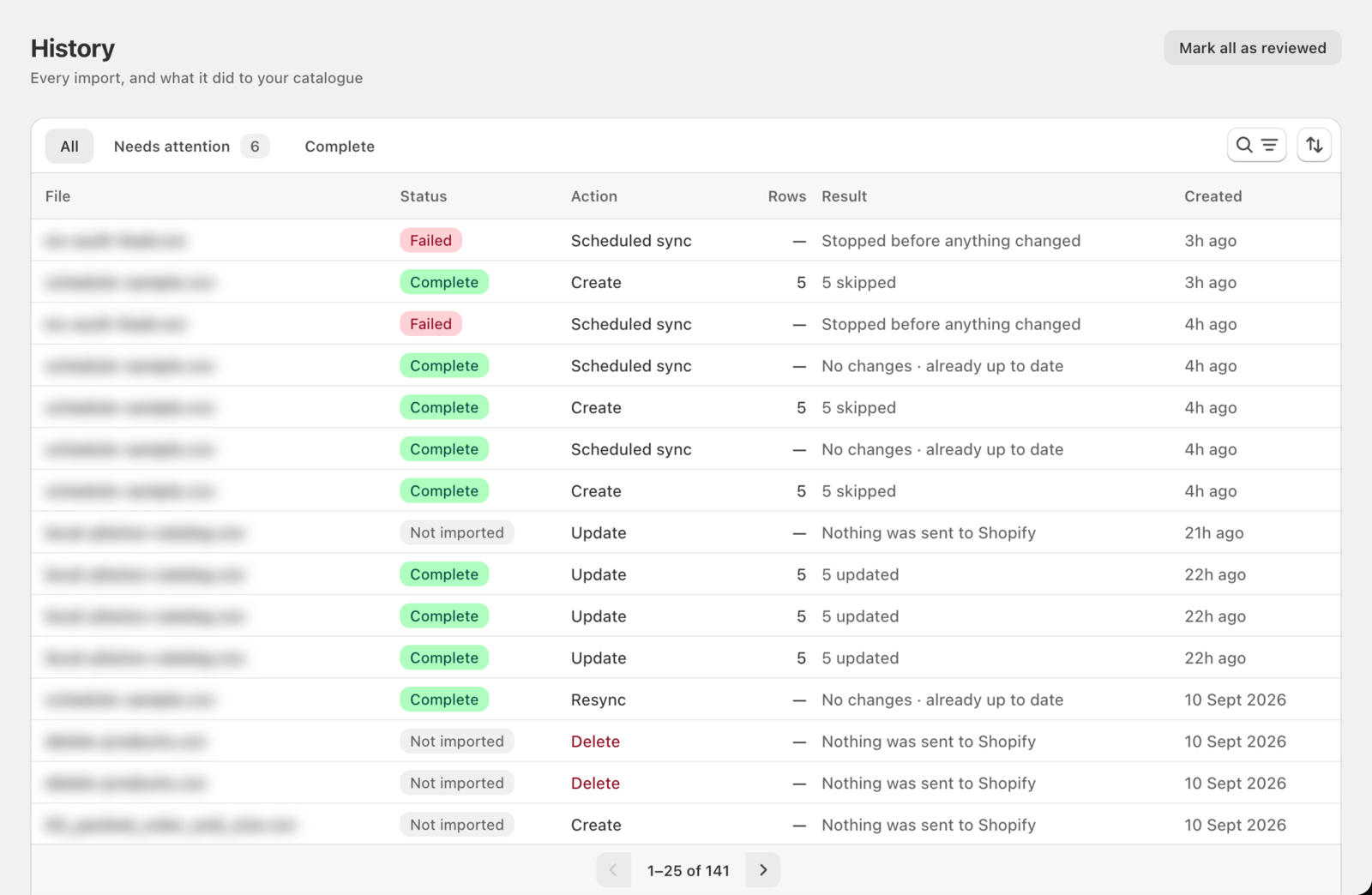
When should I use Retry?
Retry is for rows that failed for a temporary reason — Shopify was busy, rate-limited, or timed out. These often go through on a second attempt.
Csvio tells you which rows these are. When you open an import, a banner like "12 of these will work on a retry" shows how many can be retried. If some failed because of a problem in the file itself, the banner says so — those need fixing first (see below).
How do I retry only the failed rows?
- Go to History and click the import to open its details. Imports with failures are in the Needs attention tab.
- Click Retry — it shows the number of rows that can be retried (e.g. "Retry 12").
- Csvio takes you to the import screen and re-attempts only those rows.
- When it's done, the results show the new outcome, and the retry appears in History as its own run.
When should I re-upload the file instead?
Retry re-sends the same data from the original file. If the failure was caused by bad data in the file (wrong price format, missing columns, invalid URLs), fix the file first and upload it as a new import.
To see exactly which rows to fix, open the import in History and click Download failed rows (CSV). You get every failed row with its row number and the reason.
| Situation | Action |
|---|---|
| Shopify rate limit or timeout | Retry |
| Missing product title | Fix the file, re-upload |
| Invalid price format | Fix the file, re-upload |
| Broken image URL | Fix the file, re-upload |
| Temporary Shopify error | Retry |
What happens to already-imported rows?
Successful rows from the original import are left untouched. Retry only processes the rows that previously failed. If you need to modify already-imported products, run a new import through Bulk edit — Csvio will update them via the match key. A Create import won't touch them, since Create skips any SKU it already has.
Was this article helpful?
Still need help? Open Support in the Csvio menu to send us a message, or email [email protected].