Import a supplier Excel file without reformatting
Most supplier files don't match Shopify's column format. Normally you'd spend time renaming headers, splitting variants, and reorganizing data before you can import. Csvio removes that step entirely.
How do I import a supplier file without reformatting it?
- Upload the file as-is — drop your CSV, Excel, or PDF file onto the import screen. No renaming, no reformatting.
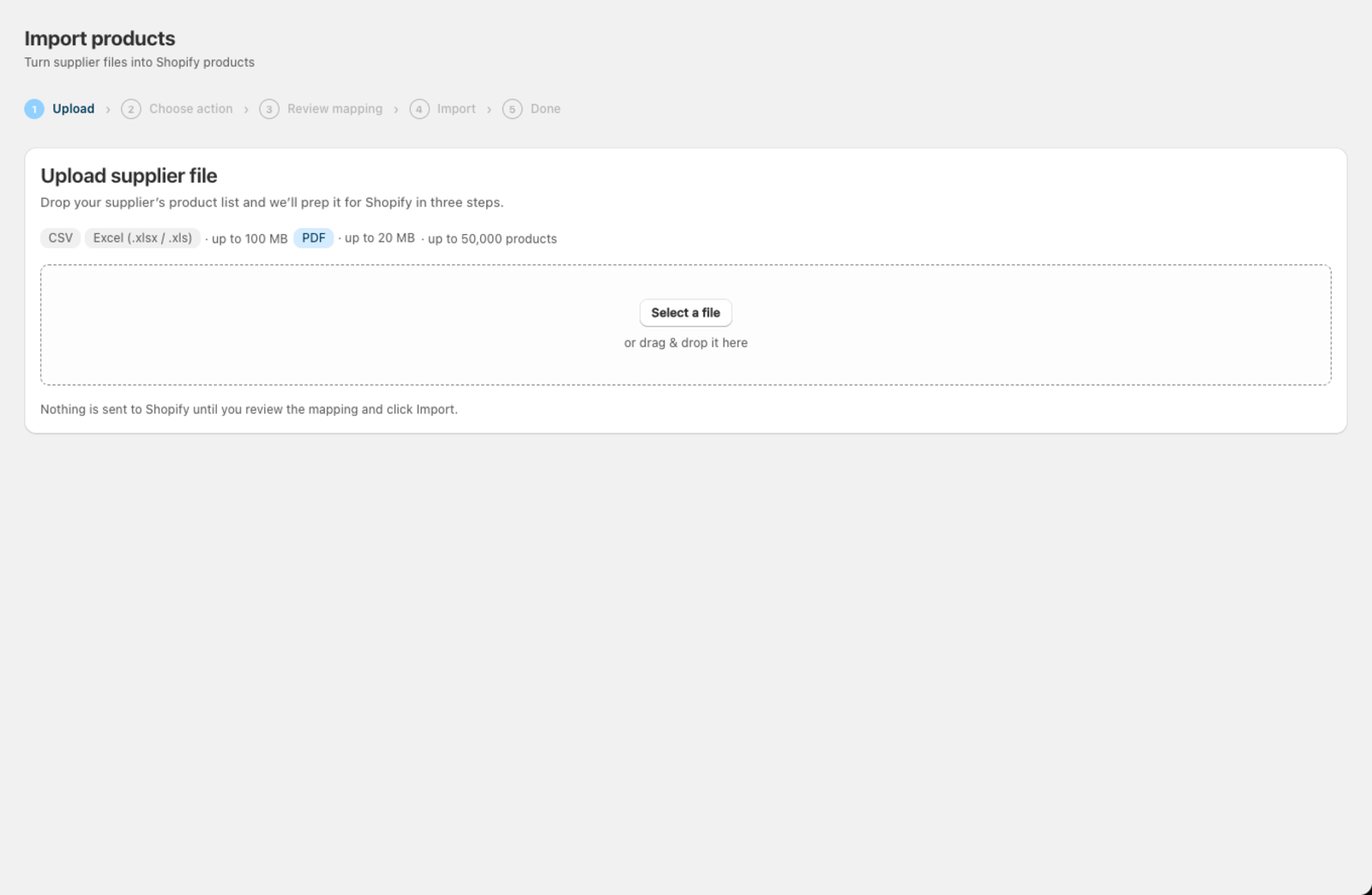
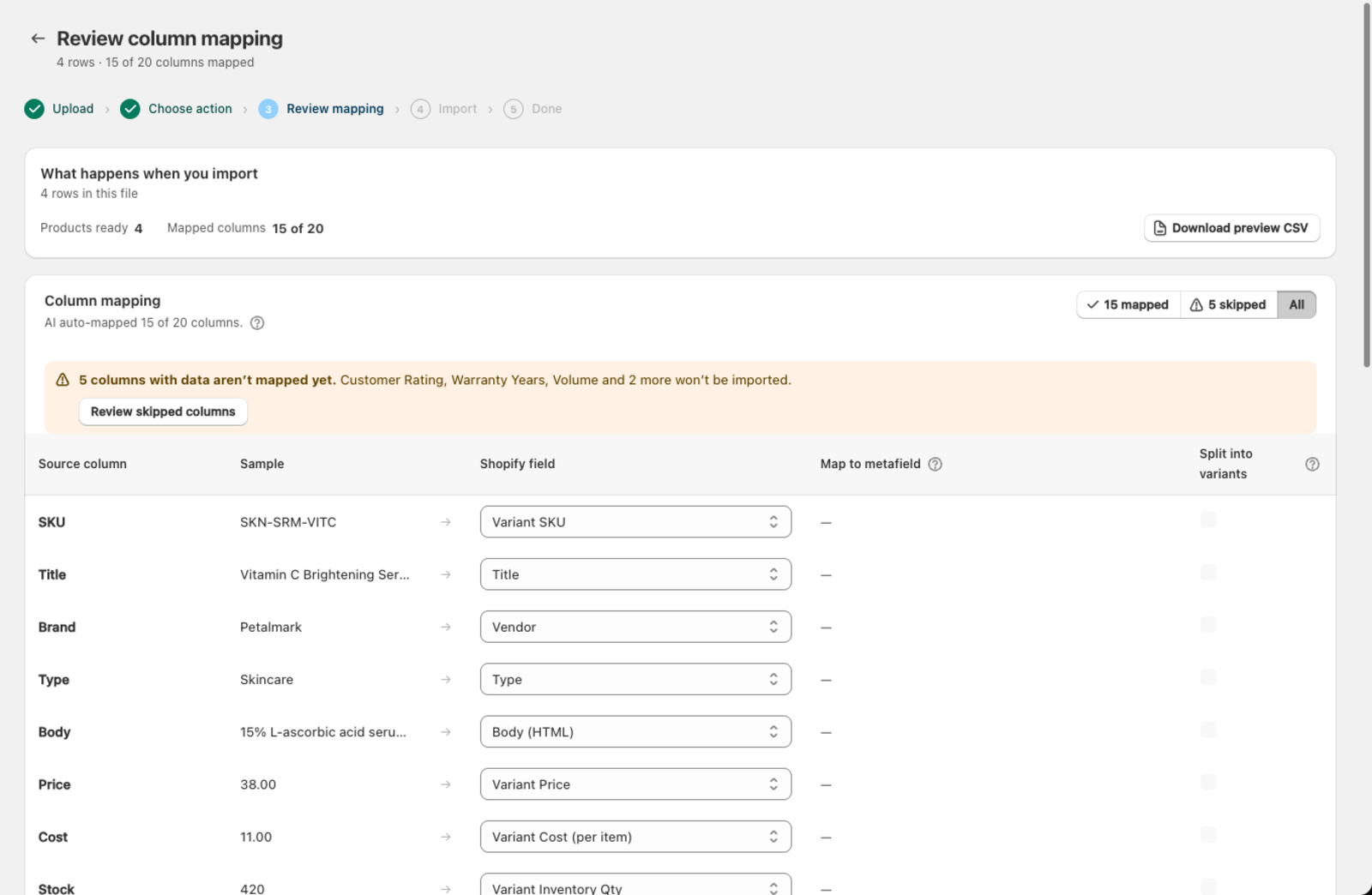
- Csvio reads your columns — the app looks at your column headers and sample values, then maps each one to the matching Shopify field (Title, Variant Price, Variant SKU, Inventory, and so on).
-
Review and adjust — check the mapping table. If anything looks off, change it with the dropdown. Csvio saves the mapping for this supplier, so next time it's applied automatically.
-
Push to Shopify — click Import to Shopify and the products in your file are added. Existing products with a matching SKU are left untouched — see Understanding import modes.
What about variants?
If your file has products with multiple sizes, colors, or options, Csvio groups rows into products automatically based on the product title. Map your option columns (Size, Color, etc.) to Option 1 Value, Option 2 Value, and so on.
If options are packed into a single cell with a delimiter (e.g. "Red, Blue, Green"), check Split into variants on that column and choose the delimiter character.
See Import products with variants for a detailed walkthrough.
Do I have to map the same supplier every time?
After your first import from a supplier, Csvio remembers which columns map to which Shopify fields. The next time you upload a file with the same column layout, the mapping is applied instantly — no review needed unless you want to make changes.
You can view and manage saved suppliers on the Suppliers page.
Which file types can I import?
| Format | Extensions |
|---|---|
| CSV | .csv |
| Excel | .xlsx, .xls |
See Supported file formats for size limits and formatting tips.
Was this article helpful?
Still need help? Open Support in the Csvio menu to send us a message, or email [email protected].