How to Read a Shopify CSV Import Report and Fix Failed Rows
To fix failed rows in a Shopify CSV import, read the report in Csvio, download the failure CSV, fix those rows and upload the file again. Products already in your store are skipped by the store check, so nothing comes in twice.
Try Csvio free on your own fileChapters
- 0:00Read a Shopify import report
- 0:10A supplier file with two messy rows
- 0:24Upload, and the missing-title warning
- 1:00The report: imported, failed and skipped
- 1:53Download the failed rows CSV
- 2:07Fix the rows in your file
- 2:18Import the fixed file without duplicates
- 3:07Import history
Transcript
Read a Shopify import report
My import report in csvio shows one product failed. Shopify says its title is too long.
A supplier file with two messy rows
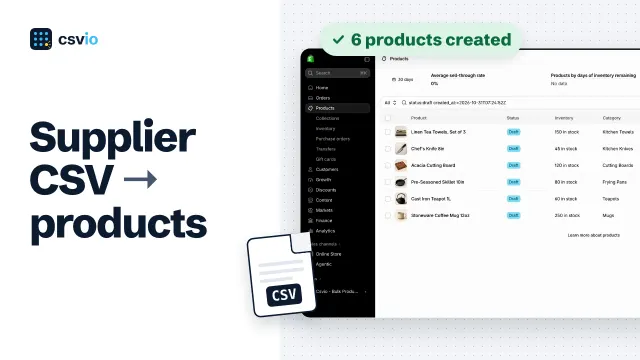
Here's how it happened. This is my new supplier's file. The knife has no product name, and the teapot's name is its whole description.
Upload, and the missing-title warning
I drag the file in. I choose Create, and continue. It warns me that one product has no title, so it'll be skipped. The code is mapped to the SKU, the product name to the title, and the retail price to the price.
The report: imported, failed and skipped
I click Import to Shopify, and confirm. Four of six products were imported. One failed. The rest of my file went in. It says to fix them in my file, and upload it again. The one that failed is the teapot. Shopify turned it down, because its title is over two hundred fifty-five characters. And the knife was skipped, because new products need a title. I download the failure CSV and open it.
Download the failed rows CSV
It has the teapot's row in my file, its full title, and the error.
Fix the rows in your file
Then I fixed my file. The knife got a name, and the teapot a short one. Everything else is the same.
Import the fixed file without duplicates
I drag in the fixed file. This time, csvio knows this supplier. I choose Create, and my saved mapping is applied. I import it, and confirm. The two fixed products are saved as drafts. The other four were skipped. They're already in my store, so nothing comes in twice.
Import history
I open my import history. On the Complete tab, my fixed file is complete, with two added and four skipped. I open it. Two succeeded, and none failed. Four were skipped, and it says why: they're already in my store. Try csvio free, on your own supplier's file. The link's in the description.
Step-by-step guides
- Troubleshoot a failed or incomplete import
- Retry failed rows from a Shopify import
- Why rows are skipped in a Shopify import
- View your Shopify import history
More Csvio tutorials
 2:33
How to Import Products to Shopify from a Supplier CSV File
 2:59
How to Move Products from WooCommerce to Shopify with a CSV Export
 2:03