Manage Shopify locations for inventory imports
When you import inventory quantities, Csvio needs to know which Shopify location to assign them to. The app caches your store's locations so it can offer them in the mapping dropdown without a Shopify lookup on every import.
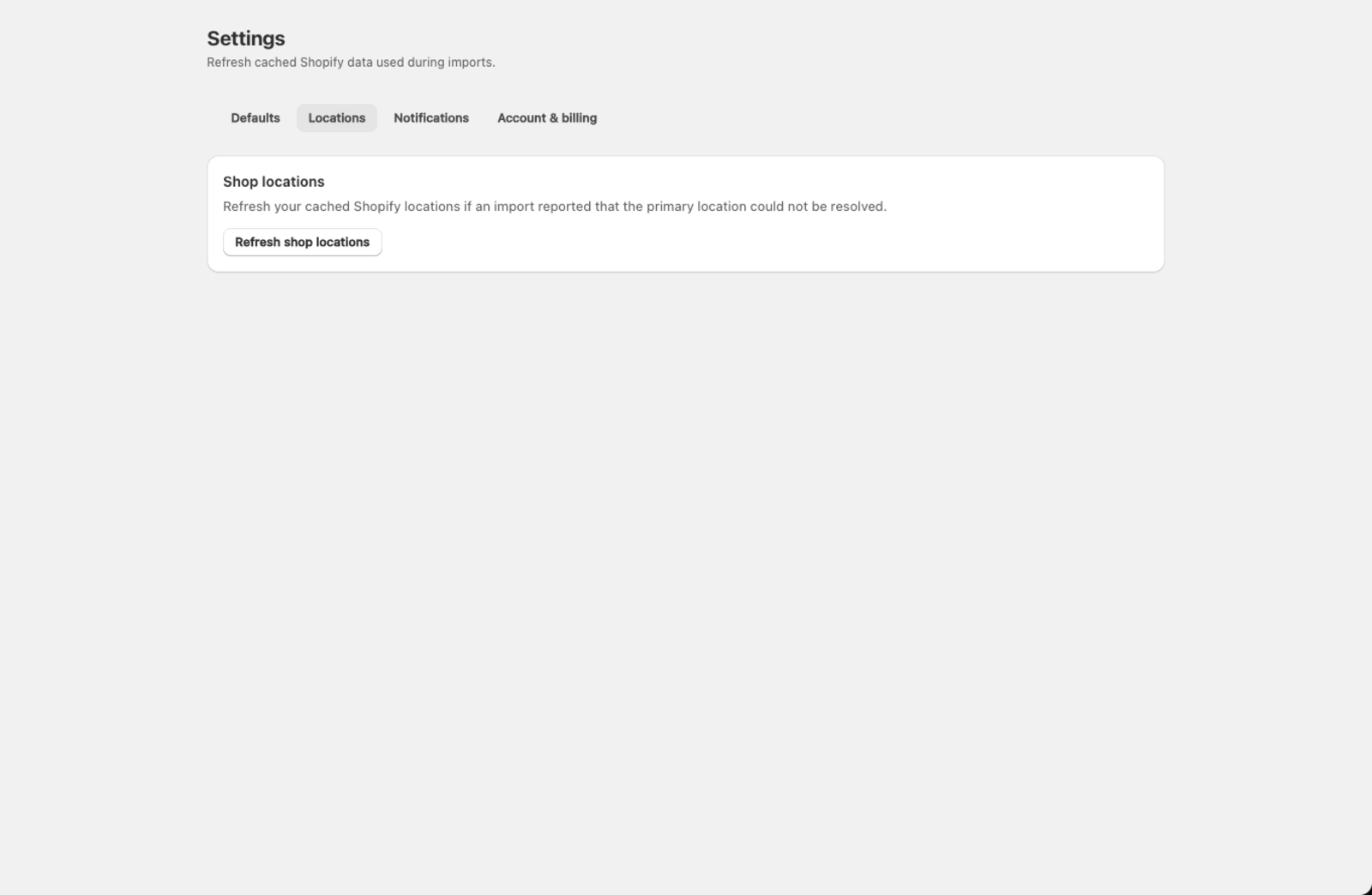
When should I refresh my locations?
Refresh your saved locations if:
- You've added, renamed, or removed a location in Shopify since installing Csvio
- An import shows an error about the location not being found
- The location dropdown on the mapping screen doesn't show the location you need
How do I refresh my locations?
- Go to Settings > Locations.
- Click Refresh shop locations.
- A confirmation message shows how many active locations were found.
How are locations used during an import?
When your file has an inventory column (e.g. "Stock" or "Quantity") and your store has more than one location, Csvio shows a location dropdown right next to that column on the mapping screen so you can pick which location the quantity applies to. If your store only has one location, Csvio assigns inventory there automatically and skips the extra step.
How do I import inventory to multiple locations?
Each import targets one location at a time. If you need to set inventory at multiple warehouses from the same file:
- Import the file once with the inventory column mapped and the first location selected.
- Import the same file again, but change the location dropdown to the second location and re-map the inventory column to the quantity for that location (if the file has separate columns per warehouse).
If your file has a single inventory column that represents stock at one specific warehouse, just select that warehouse's location in the dropdown.
What if my file has no inventory column?
If you don't map any column to Variant Inventory Qty, Csvio doesn't touch inventory at all. Existing stock levels in Shopify are left as-is. This is the safest option if you only want to update product details (titles, prices, descriptions) without changing stock counts.
Was this article helpful?
Still need help? Open Support in the Csvio menu to send us a message, or email [email protected].