Set default values for Shopify product imports
Defaults fill in Shopify fields that your file doesn't include. For example, if your file has no "Status" column, the default status (Draft, Active, or Archived) is applied to every product.
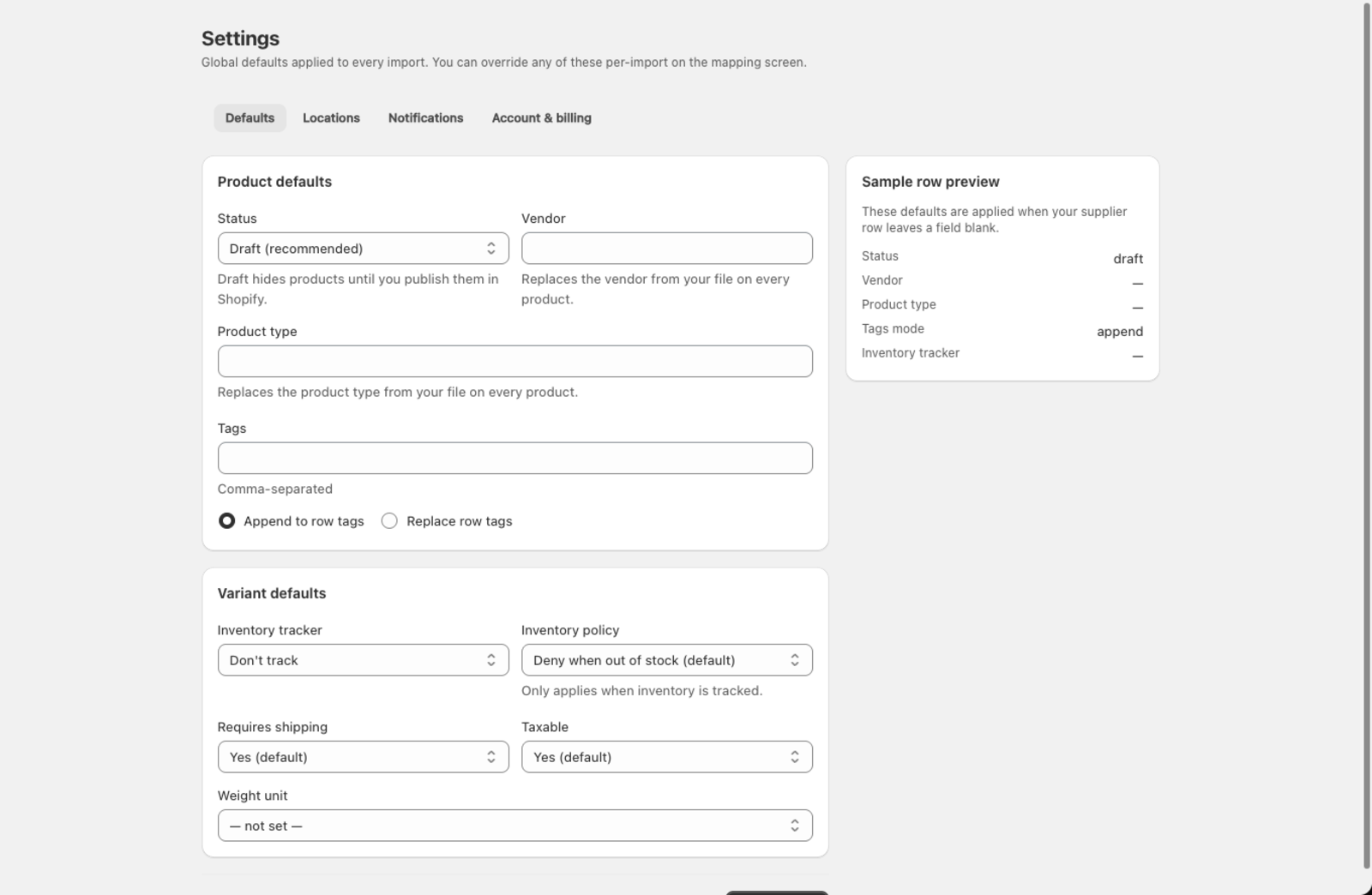
Where do I set import defaults?
You can set defaults in two places:
- Settings > Defaults — global defaults that pre-fill on every new import
- The Import defaults card on the mapping screen — click Customize for this import to override them just for the current upload
Per-import settings override global defaults. If your file includes a column that's mapped to the same field, the file value takes priority over both.
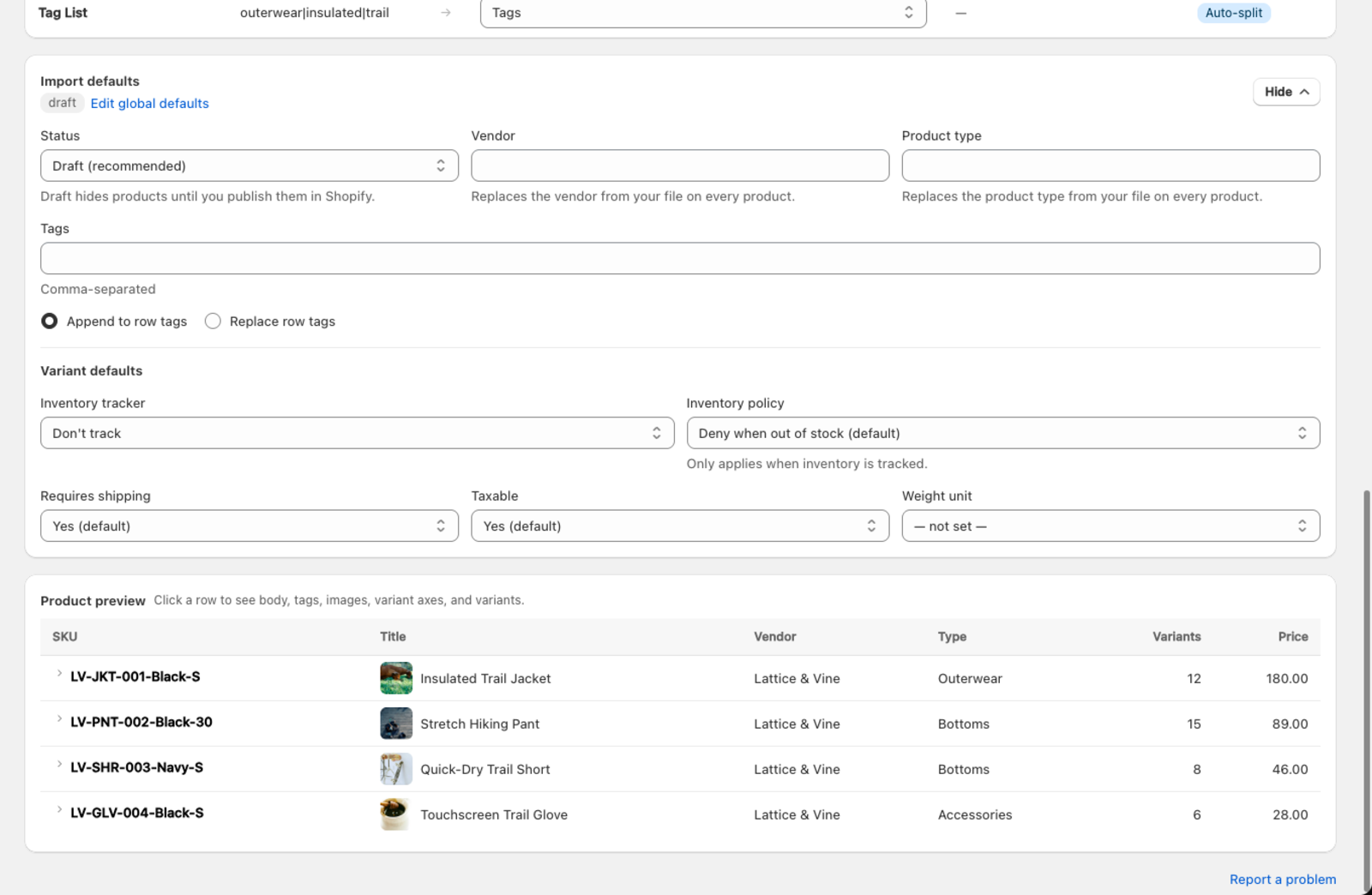
Which product defaults can I set?
| Field | Options | Notes |
|---|---|---|
| Status | Draft, Active, Archived | Draft is recommended so you can review products before publishing |
| Vendor | Any text | The brand or manufacturer name shown in Shopify |
| Product type | Any text | Used for organizing products and creating collections |
| Tags | Comma-separated | Applied to every product in the import |
| Tags mode | Append to row tags, Replace row tags | Controls whether file tags are combined with default tags or replaced by them |
Which variant defaults can I set?
| Field | Options | Notes |
|---|---|---|
| Inventory tracking | Don't track, Shopify tracks inventory | Controls whether Shopify maintains a stock count |
| Inventory policy | Deny when out of stock, Continue selling | Whether customers can buy when inventory reaches zero |
| Requires shipping | Yes, No | Enables Shopify's shipping rate calculation |
| Taxable | Yes, No | Whether tax is charged on this product |
| Weight unit | g, kg, lb, oz | Unit for the weight field |
Do defaults override values in my file?
- If your file has a mapped column for a field, the file value wins — the default is ignored for that row.
- If a row's cell is empty for a mapped column, the default fills in the blank.
- If no column is mapped and no default is set, Shopify's own default applies (typically Draft status, no vendor, etc.).
How do I save defaults for every import?
- Go to Settings > Defaults.
- Set the values you want.
- Click Save defaults.
A confirmation banner appears: "Defaults saved. They'll be pre-filled on every new import." You can still override them per-import from the mapping screen.
Was this article helpful?
Still need help? Open Support in the Csvio menu to send us a message, or email [email protected].