Update Shopify products from a new supplier file
When a supplier sends you an updated file, Resync compares it against your last successful import and shows a detailed diff of what's new, changed, or removed. You choose which changes to apply.
When does the resync option appear?
Resync isn't a separate upload screen — it's an option that shows up when Csvio recognises the file you're importing. Two things have to be true:
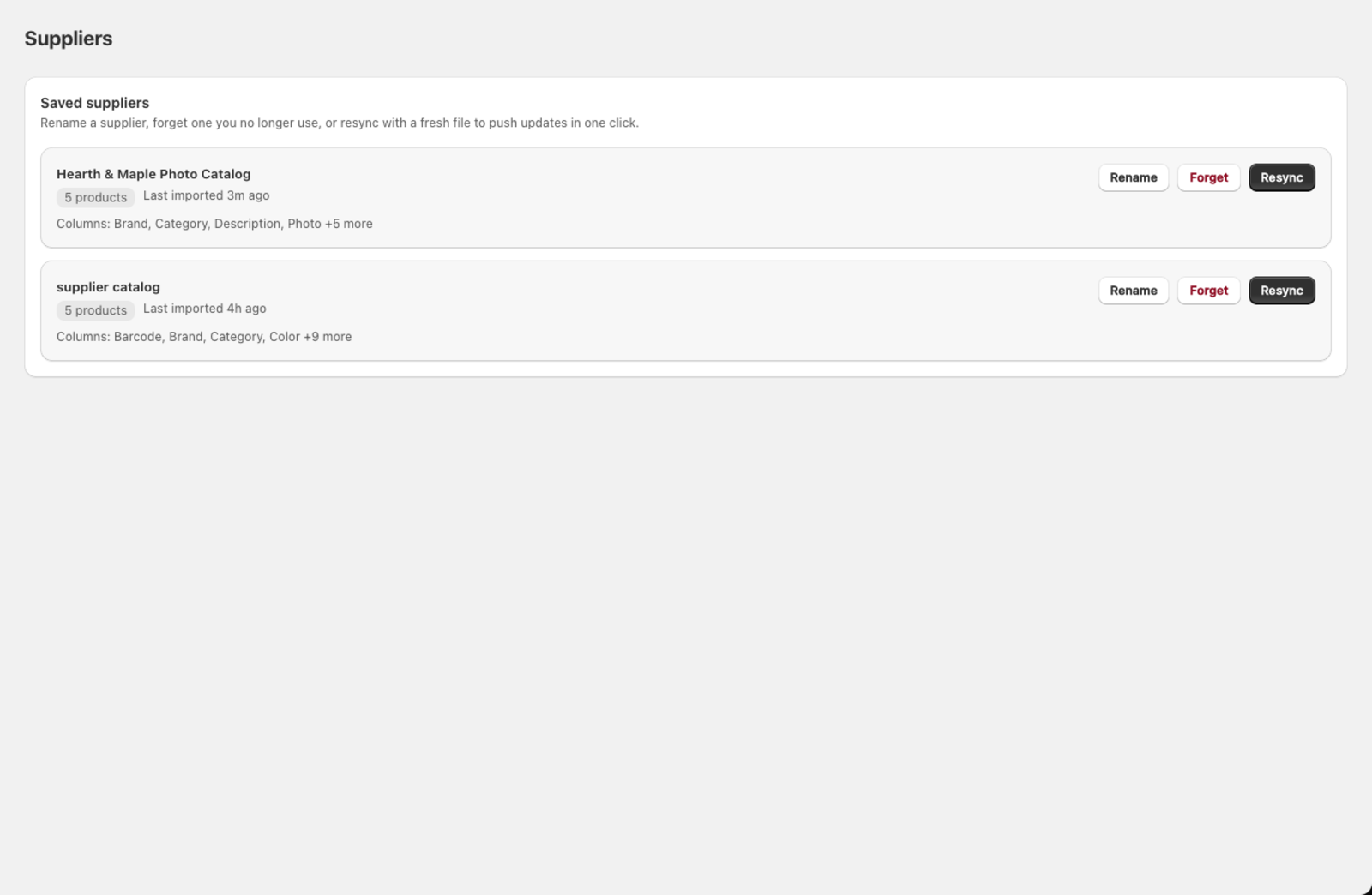
- You've imported from this supplier before. The first import saves the supplier (with a snapshot of its products) on the Suppliers page. Resync compares against that snapshot.
- The new file has the same column layout. When you upload a file whose columns match a saved supplier, the Choose action screen offers the resync option with real counts already computed.
So resync is for an updated version of a file you've imported before — a refreshed price list or catalogue. A few implications:
- If you re-upload the exact same file, the screen shows a green "Nothing has changed since your last import" banner — there's nothing to apply, though you can still run a normal import below it if you want to.
- It's opt-in but pre-selected: when Csvio recognises the file, the Sync changes from this supplier card is checked by default, showing the counts of new, changed, removed, and unchanged products at a glance. You can still click one of the Create / Bulk edit / Bulk delete cards below it to run a plain import instead.
- A brand-new file from a supplier you've never imported has no snapshot to compare against, so there's no resync — run a normal import first.
When should I use Resync?
- Your supplier sends you a new price list or updated catalogue
- You want to see exactly what changed before pushing updates to Shopify
- You need to selectively apply some changes but not others
Resync is available on the Pro plan.
How does Resync match products?
Resync matches products by handle. Csvio generates a handle automatically for every product — from an explicit Handle column if you map one, otherwise from the SKU, otherwise from the title — so you don't need to add a Handle column yourself. What matters is that whatever generates the handle (your SKU, or your title if there's no SKU) stays the same between imports.
As long as a supplier was saved from a previous import, it appears on the Suppliers page with a Resync button. If a product's handle changes between files, Csvio can't line it up with the last import — it sees the old handle as Removed and the new one as New.
How do I start a resync?
From the Suppliers page:
- Find the supplier and click Resync.
- Upload the updated file from that supplier.
From the import screen: Upload a file that matches a known supplier — Csvio shows the Sync changes from this supplier card on the Choose action screen with the diff counts already computed.
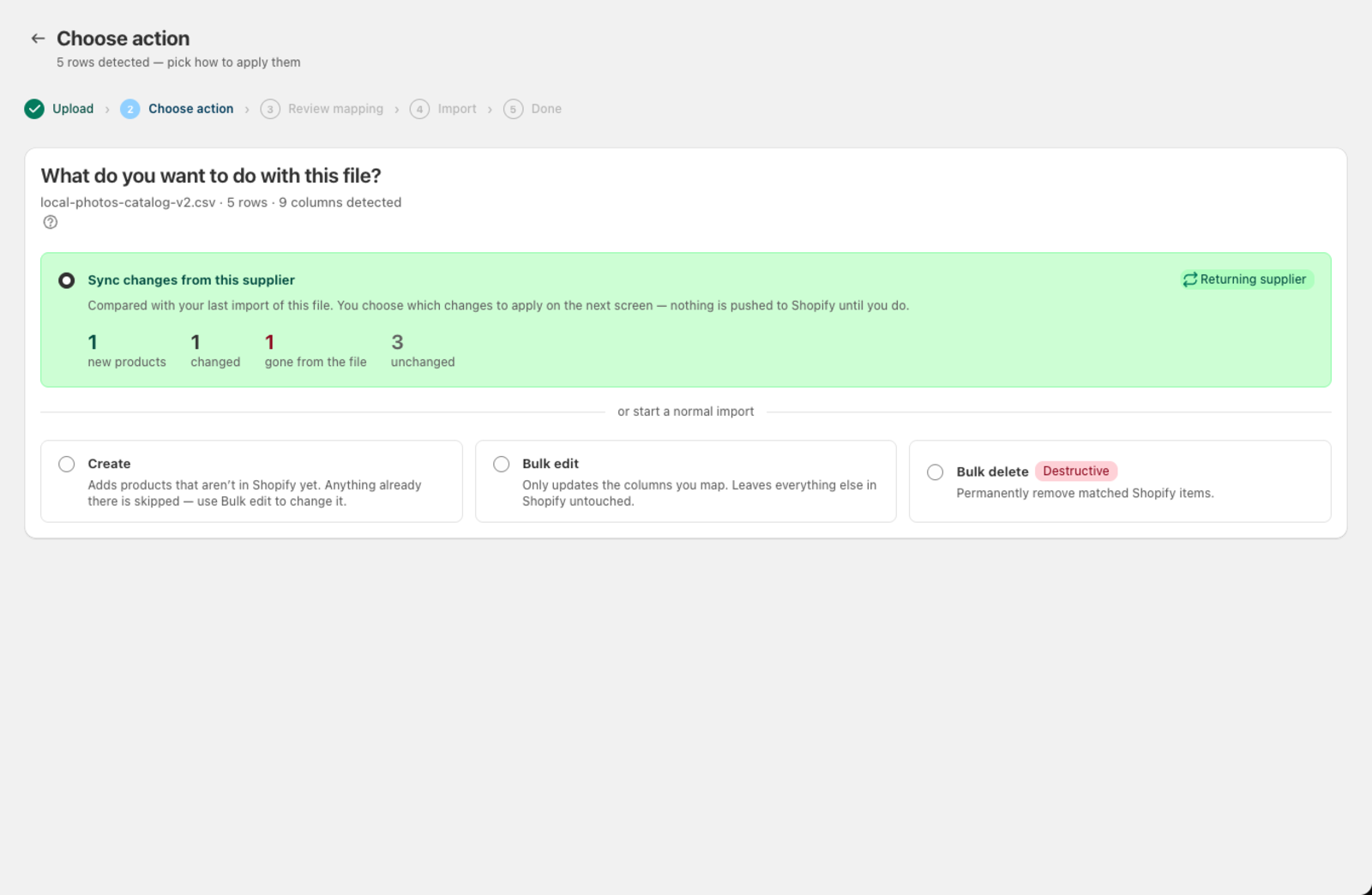
Click the Review the N changes button in the title bar to continue into the diff.
What are the steps in a resync?
-
Upload — Csvio reads the new file and compares each product against the saved snapshot from your last import.
-
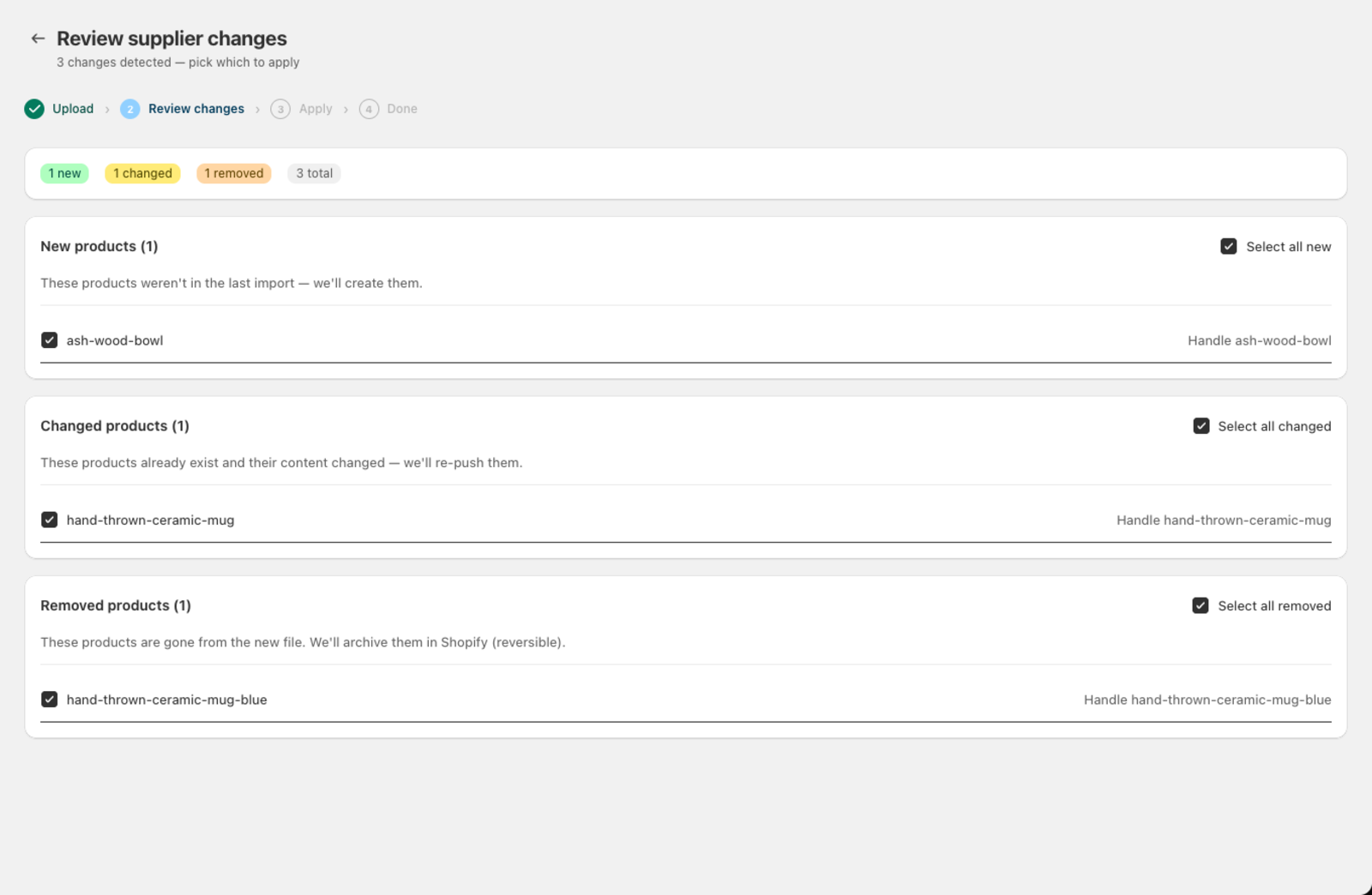
Review changes — the screen shows summary badges at the top and three sections below:
- New — products in the new file that weren't in the last import
- Changed — products that exist in both files but whose content changed since the last import
- Removed — products from the last import that are missing in the new file
-
Select what to apply — check the boxes next to the changes you want. Use the Select all new / changed / removed links at the top of each section, or choose individual rows.
-
Apply — click Apply N changes in the title bar to push the selected updates to Shopify. A progress screen shows the push status; you can close the tab and it keeps running while you're away.
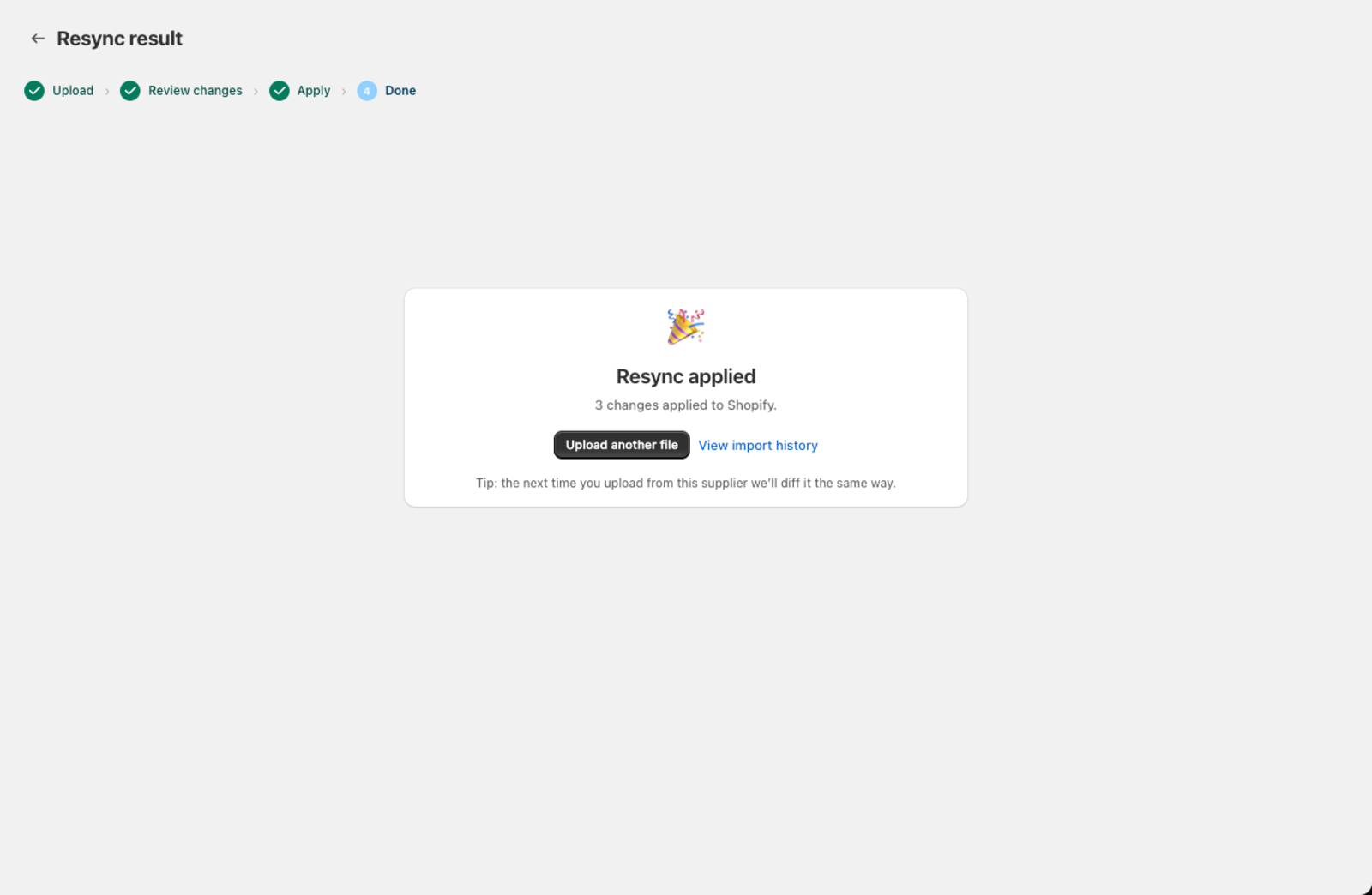
When it finishes, you'll see a Resync applied confirmation with the count of changes pushed, and a reminder that the next upload from this supplier will be diffed the same way.
What happens to removed products?
Products marked as "Removed" are archived in Shopify (status set to Archived), not permanently deleted. You can restore archived products from Shopify admin if needed.
What if nothing changed?
If the new file is identical to the last import, Csvio shows "Nothing has changed since your last import" and there's nothing to apply.
What if Resync isn't the right fit?
If Resync isn't the right fit, the Choose action screen also lets you run a plain Create, Bulk edit, or Bulk delete import instead of syncing — just pick one of those cards instead of the pre-selected resync card.
Was this article helpful?
Still need help? Open Support in the Csvio menu to send us a message, or email [email protected].