How to Import an Excel Sheet into Shopify as Products
To import an Excel workbook into Shopify, drop the .xlsx file into Csvio, pick the sheet you want, check the mapping and confirm. Csvio skips the supplier's terms page and opens the sheet with the most data. Here the cookware sheet becomes three products, with sizes as variants.
Try Csvio free on your own fileChapters
- 0:00Upload an Excel (.xlsx) workbook
- 0:21Choose which sheet to import
- 0:45Map the sheet's columns to Shopify fields
- 1:09Sizes as variants in the preview
- 1:26Import, report and the products in Shopify
Transcript
Upload an Excel (.xlsx) workbook
In this video, one sheet of a supplier's Excel workbook becomes Shopify products, with sizes, prices and photos. Excel files go in just like a CSV. Drop in the workbook, just as your supplier sent it.
Choose which sheet to import
This workbook has three sheets: the supplier's terms, tableware, and cookware. Csvio skips the terms page and opens the sheet with the most data. This time we want the cookware, so pick that sheet here. These products are new, so it's Create.
Map the sheet's columns to Shopify fields
Then Csvio maps the cookware sheet's own columns. Item code is the SKU, and product the title. Size becomes the variant option. Trade price is what you pay, RRP what customers pay, and the weight is in grams.
Sizes as variants in the preview
The preview shows three products. The skillet's two sizes became one product, with a price and stock for each.
Import, report and the products in Shopify
Nothing reaches your store until you confirm. The report shows exactly what was created: three products, saved as drafts. Here's the skillet in Shopify, with both sizes, their prices and its photo. Try Csvio free, on your own supplier's workbook. The link's in the description.
Step-by-step guides
More Csvio tutorials
 2:02
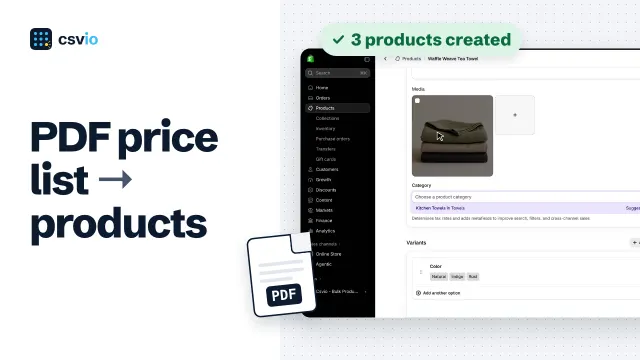
How to Import a PDF Price List into Shopify as Products
 2:42
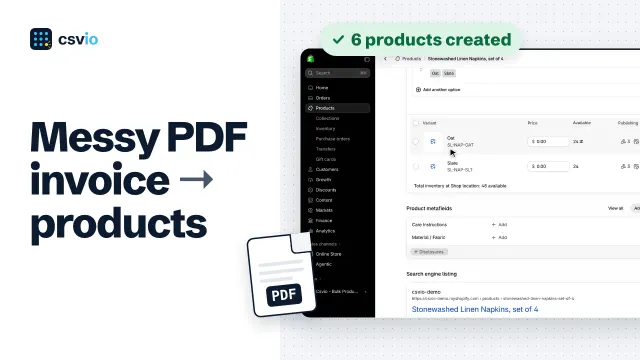
How to Import a PDF Invoice into Shopify as Products
 2:51